> ## Documentation Index
> Fetch the complete documentation index at: https://docs.luxalgo.com/llms.txt
> Use this file to discover all available pages before exploring further.
# Features
Quant provides a comprehensive set of features designed to help you create, refine, and deploy Pine Script® indicators and strategies. This page covers the core capabilities available in the Quant interface.
## Code Generation
Quant can generate complete Pine Script® code based on your natural language descriptions. When Quant generates code, it appears in a split editor view, allowing you to review the generated script alongside the chat interface. You can copy the generated code using the copy button and paste it directly into TradingView® to add the indicator to your charts.
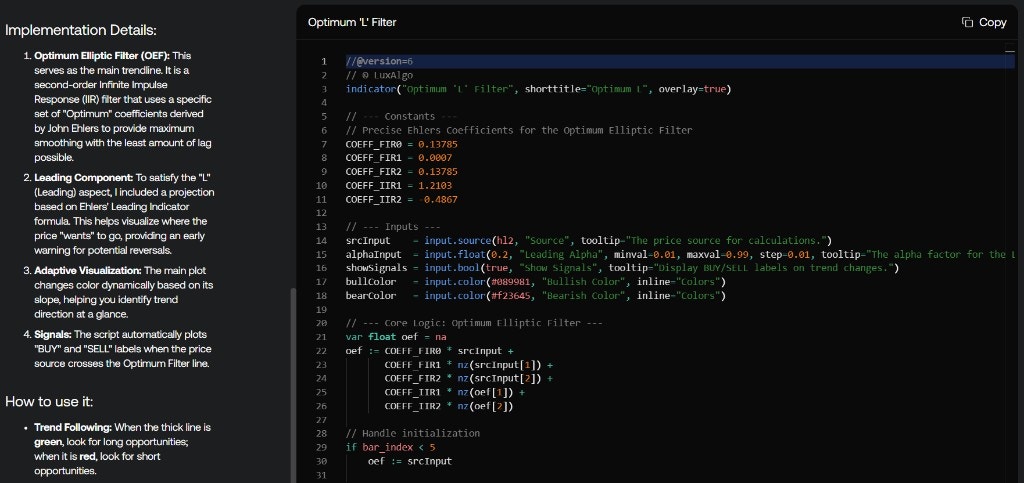 The code cannot be copied while Quant is actively generating code. Wait for the generation to complete before using the copy button.
Quant leverages its access to both TradingView scripts and LuxAlgo's proprietary script library to reliably handle niche and complex concepts. This dual knowledge base enables Quant to generate more relevant and code of higher quality.
## Instant Visualization
The code cannot be copied while Quant is actively generating code. Wait for the generation to complete before using the copy button.
Quant leverages its access to both TradingView scripts and LuxAlgo's proprietary script library to reliably handle niche and complex concepts. This dual knowledge base enables Quant to generate more relevant and code of higher quality.
## Instant Visualization
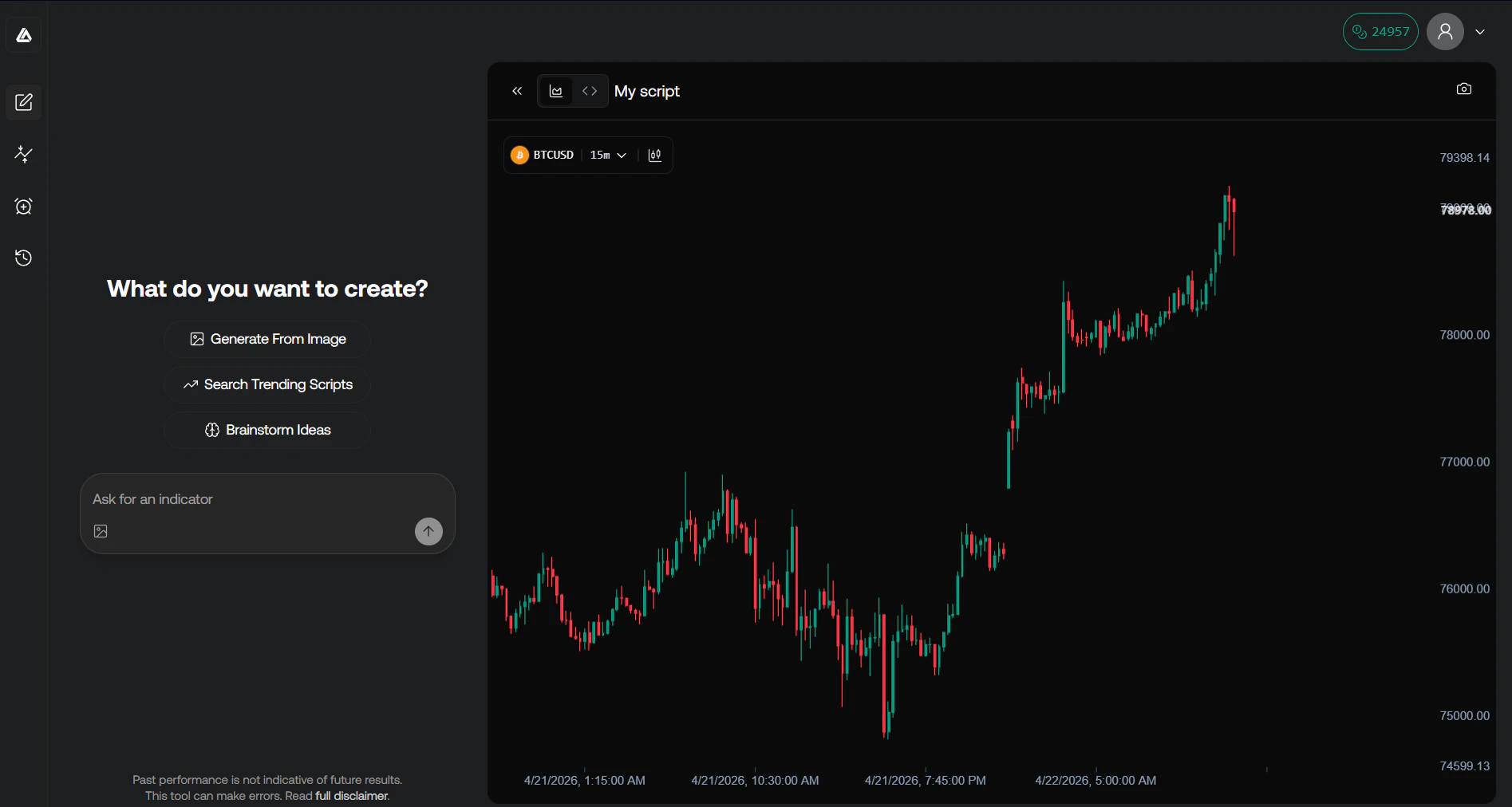 Once generated, indicators can be displayed in a chart for direct visual feedback.
Displayed results may differ from what could be seen on TradingView®.
Not all indicators are compatible with our chart and may only be displayed on TradingView® charts.
Currently strategies cannot be computed and displayed.
Users can access data from the following assets:
* Cryptocurrencies
* Forex
* Commodities
on the follwoing timeframes: 1 minute, 5 minutes, 15 minutes, 30 minutes, 1 hour, 4 hours, 1 day.
Due to data limitations, only completed candles are returned. Users may experience a one candle delay across assets
## Image to Code
You can upload images of indicators or chart setups, by pasting them directly in the prompt input, uploading them from the upload image button, or by clicking on "Generate From Image", and Quant will analyze the visual representation to generate Pine Script® code that reproduces the indicator's behavior as closely as possible.
Once generated, indicators can be displayed in a chart for direct visual feedback.
Displayed results may differ from what could be seen on TradingView®.
Not all indicators are compatible with our chart and may only be displayed on TradingView® charts.
Currently strategies cannot be computed and displayed.
Users can access data from the following assets:
* Cryptocurrencies
* Forex
* Commodities
on the follwoing timeframes: 1 minute, 5 minutes, 15 minutes, 30 minutes, 1 hour, 4 hours, 1 day.
Due to data limitations, only completed candles are returned. Users may experience a one candle delay across assets
## Image to Code
You can upload images of indicators or chart setups, by pasting them directly in the prompt input, uploading them from the upload image button, or by clicking on "Generate From Image", and Quant will analyze the visual representation to generate Pine Script® code that reproduces the indicator's behavior as closely as possible.
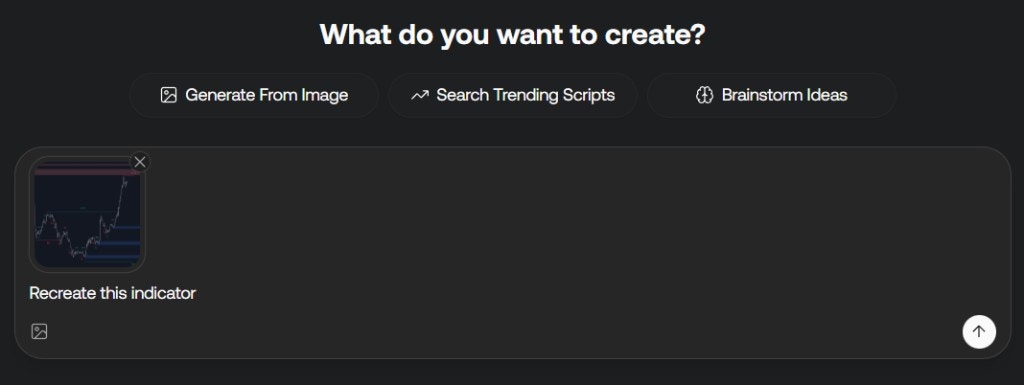 Additionally, you can send images during your conversation to provide more context or refine Quant's understanding of your requirements. This helps Quant better interpret complex visual patterns and generate more accurate code.
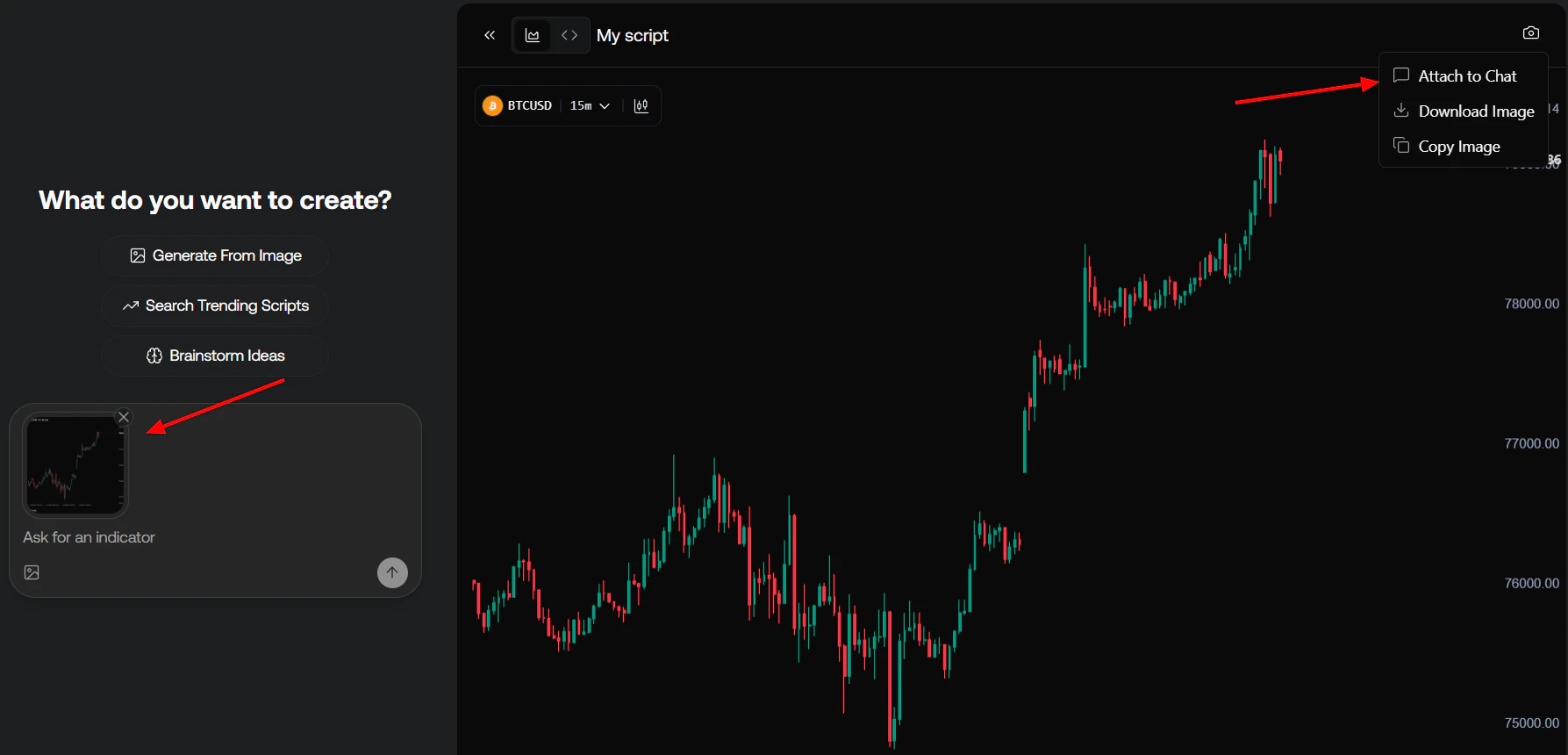
You can attach chart images directly to the chat input prompt from the camera icon in the chart header and clicking on "Attach to chat".
Additionally, you can send images during your conversation to provide more context or refine Quant's understanding of your requirements. This helps Quant better interpret complex visual patterns and generate more accurate code.
You can attach chart images directly to the chat input prompt from the camera icon in the chart header and clicking on "Attach to chat".
 ## Bug Fixing
Quant can automatically identify and fix errors and warnings in your Pine Script® code. To fix all errors and warnings present in your script, use the "Fix with Quant" button in the editor.
## Bug Fixing
Quant can automatically identify and fix errors and warnings in your Pine Script® code. To fix all errors and warnings present in your script, use the "Fix with Quant" button in the editor.
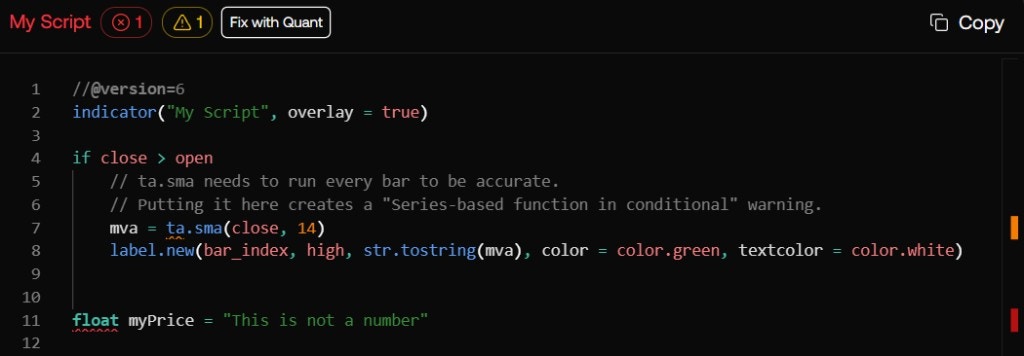 Errors prevent the script from running, while warnings won't prevent execution but may cause unexpected results.
The editor also includes error and warnings highlighting for users more used to this.
You can hover on the error or warning button to get more information about them.
### Runtime Errors
Errors prevent the script from running, while warnings won't prevent execution but may cause unexpected results.
The editor also includes error and warnings highlighting for users more used to this.
You can hover on the error or warning button to get more information about them.
### Runtime Errors
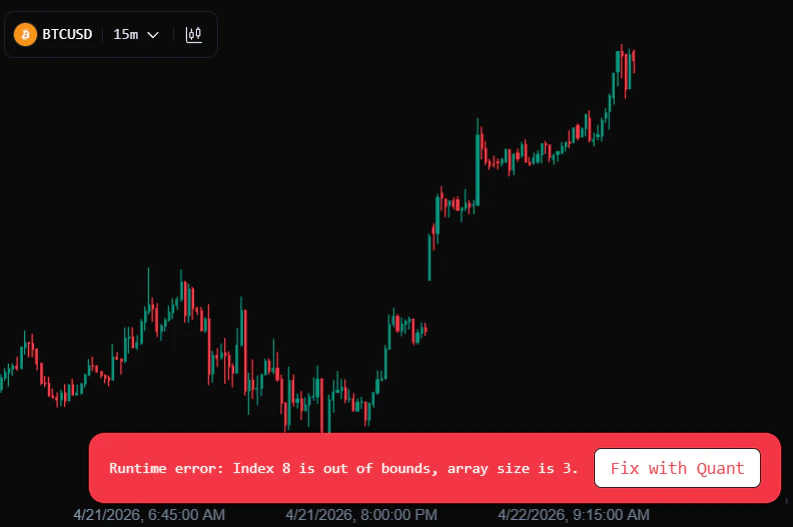 Quant can also help fix detected runtime errors. Unlike syntax errors runtime errors only appears once running the indicator over historical and/or newly formed candles.
If a runtime error is present, a message will appear at the bottom part of the chart.
## Pine Script® Help
Quant has access to the complete Pine Script® knowledge base and can assist you with questions about Pine Script® syntax, functions, best practices, and implementation patterns. Whether you're learning Pine Script® or need clarification on specific concepts, Quant can provide accurate, context-aware answers based on official Pine Script® documentation.
## Assisted Coding
For more experienced Pine Script® developers, Quant can assist with repetitive tasks and complex implementations. The integrated code editor is fully interactive and supports syntax/error highlighting as well as syntax completion, providing a professional coding environment.
The editor cannot be used while Quant is generating code. Wait for code generation to complete before making manual edits.
You can work collaboratively with Quant by making manual edits to the code, and Quant will learn from your changes to assist with subsequent iterations and refinements.
Quant can also help fix detected runtime errors. Unlike syntax errors runtime errors only appears once running the indicator over historical and/or newly formed candles.
If a runtime error is present, a message will appear at the bottom part of the chart.
## Pine Script® Help
Quant has access to the complete Pine Script® knowledge base and can assist you with questions about Pine Script® syntax, functions, best practices, and implementation patterns. Whether you're learning Pine Script® or need clarification on specific concepts, Quant can provide accurate, context-aware answers based on official Pine Script® documentation.
## Assisted Coding
For more experienced Pine Script® developers, Quant can assist with repetitive tasks and complex implementations. The integrated code editor is fully interactive and supports syntax/error highlighting as well as syntax completion, providing a professional coding environment.
The editor cannot be used while Quant is generating code. Wait for code generation to complete before making manual edits.
You can work collaboratively with Quant by making manual edits to the code, and Quant will learn from your changes to assist with subsequent iterations and refinements.