# How To Get Updates (/platform/algos/how-to-update)
## Applying An Update [#applying-an-update]
On Tradingview updates are easy to apply. Once an update is available, refresh your chart, then a purple 🔄 icon will be visible near the indicator title, click on it and click on "Update to latest version".
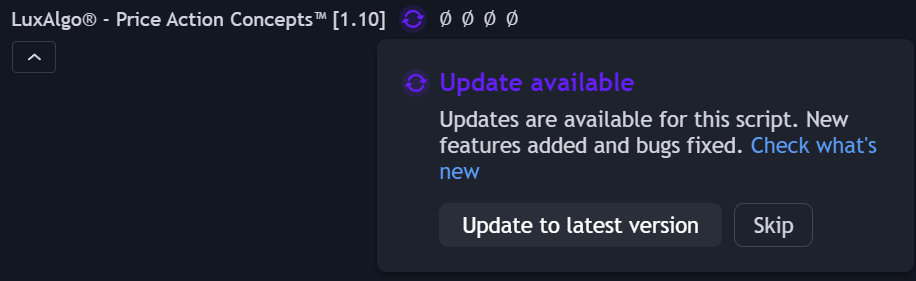
You can also apply an update by following these steps:
1. Refresh your browser or mobile app
2. Remove the indicator from your chart
3. Re-add it from your invite-only indicators
The latest version of the indicator should appear.
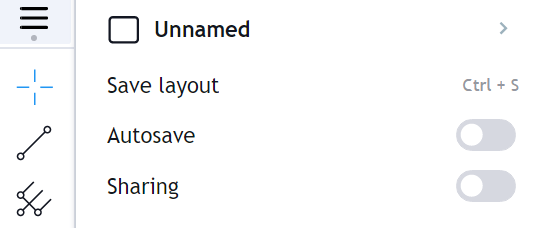
Make sure to save your **Chart Layout** on Tradingview after successfully installing an update so you can ensure it will stay
## Receiving Updates Notifications [#receiving-updates-notifications]
We always announce our updates on our community Discord server & [X Account](https://x.com/LuxAlgo). You can also receive update notifications on your TradingView charts directly by going to:
`settings -> notifications -> SCRIPTS YOU'VE ADDED TO FAVORITES OR LIKED`

Make sure to follow the LuxAlgo account on [TradingView](https://www.tradingview.com/u/LuxAlgo/#published-scripts) to ensure you are notified when we push updates with new features to our exclusive tools!