# Paper Trading (/platform/charts/trading)
Paper Trading puts a simulated account inside [Vela](https://vela.luxalgo.com/chart), our next-generation charting platform. Every signed-in trader starts with a **$100,000 paper account**. Orders are simulated against live prices, so you can practice entries, exits and sizing on the same chart you analyze. Nothing is ever sent to a broker or an exchange.
[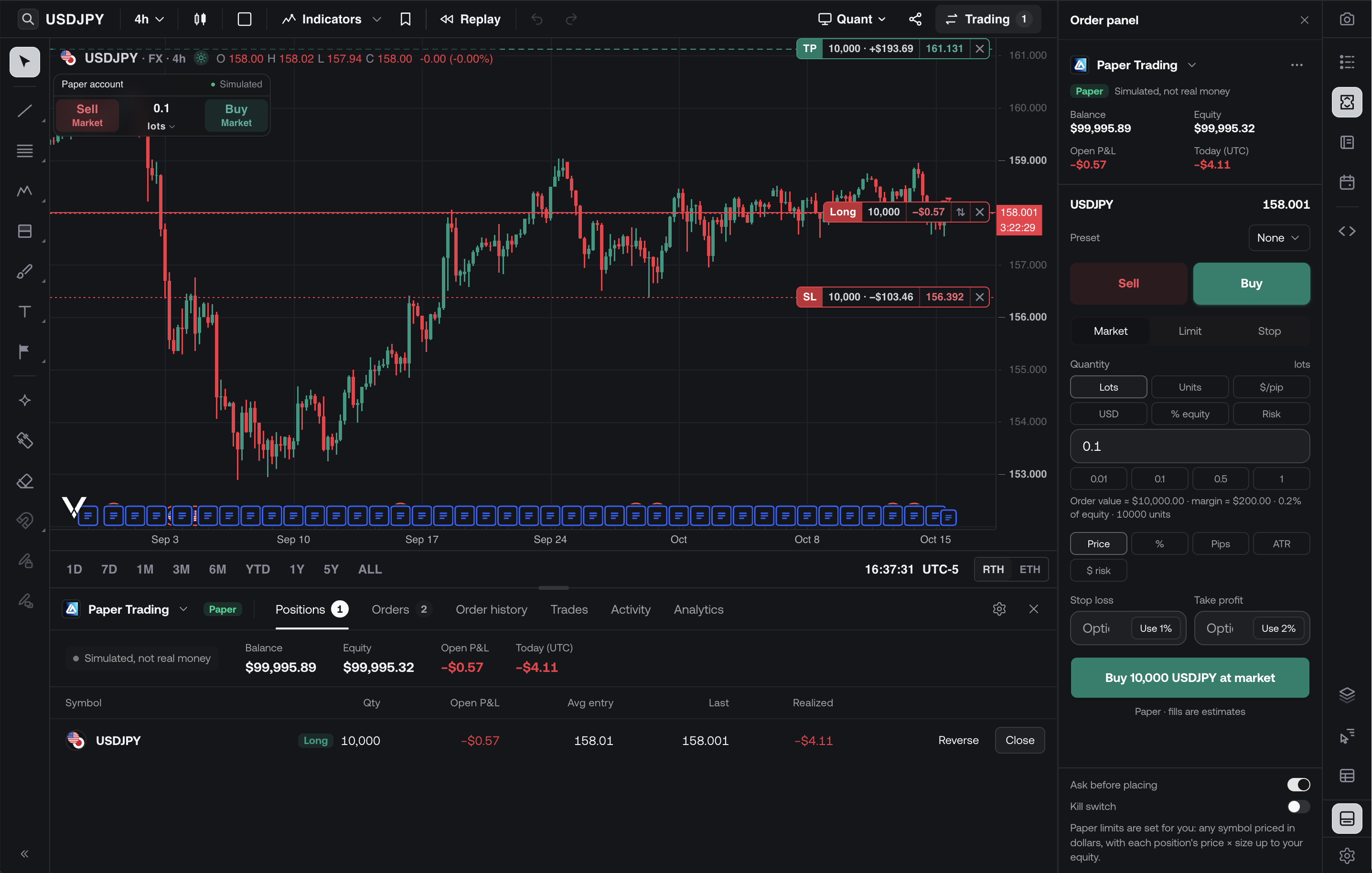](/images/charts/trading/paper-trading-overview.png)
A paper position on the chart, with the trading panel under it and the order panel beside it.
Paper Trading needs a signed-in account and a desktop-width window. Results are simulated: fills, spreads and margin are estimates and can differ from live execution.
## Where everything is [#where-everything-is]
| Part | Where | What it does |
| -------------------- | ------------------------------------------------------------------------------------------------ | ------------------------------------------------------------------------------------ |
| **Buy** and **Sell** | On the chart, under the symbol | Sets up an order in the order panel, with the size shown between the buttons |
| **Order panel** | The panel rail on the right | The full ticket: side, order type, size, exits, time in force and presets |
| **Trading panel** | Under the chart. Open it with **Trading** in the chart's header | Your positions, working orders, order history, closed trades, activity and analytics |
| **Trading settings** | The gear in the trading panel, or **Trading settings** in the order panel's **⋯** menu | Chart, order, hotkey, preset, safety and paper account settings |
## Place an order [#place-an-order]
Click **Buy** or **Sell** on the chart, or open the **Order panel** from the panel rail. A click on the chart's buttons sets the order up in the panel; it does not place it.
**Market** fills at once. **Limit** and **Stop** wait at a price: type it, press **Last** to start from the last price, or drag the order's line on the chart.
Type the size or use the quick sizes. The panel shows the order value, the margin it uses and its share of your equity before you place it. See [Sizing](#sizing).
Set a **Stop loss** and a **Take profit**. **Use 1%** and **Use 2%** suggest a stop 1% and a target 2% from the entry, which you can then edit or drag.
The button reads the order back to you, for example **Buy 10,000 USDJPY at market**. With **Ask before placing** on, a confirmation shows the order exactly as it will be placed.
Buy from the chart, check the order in the order panel, then confirm it. The position shows on the chart at once.
[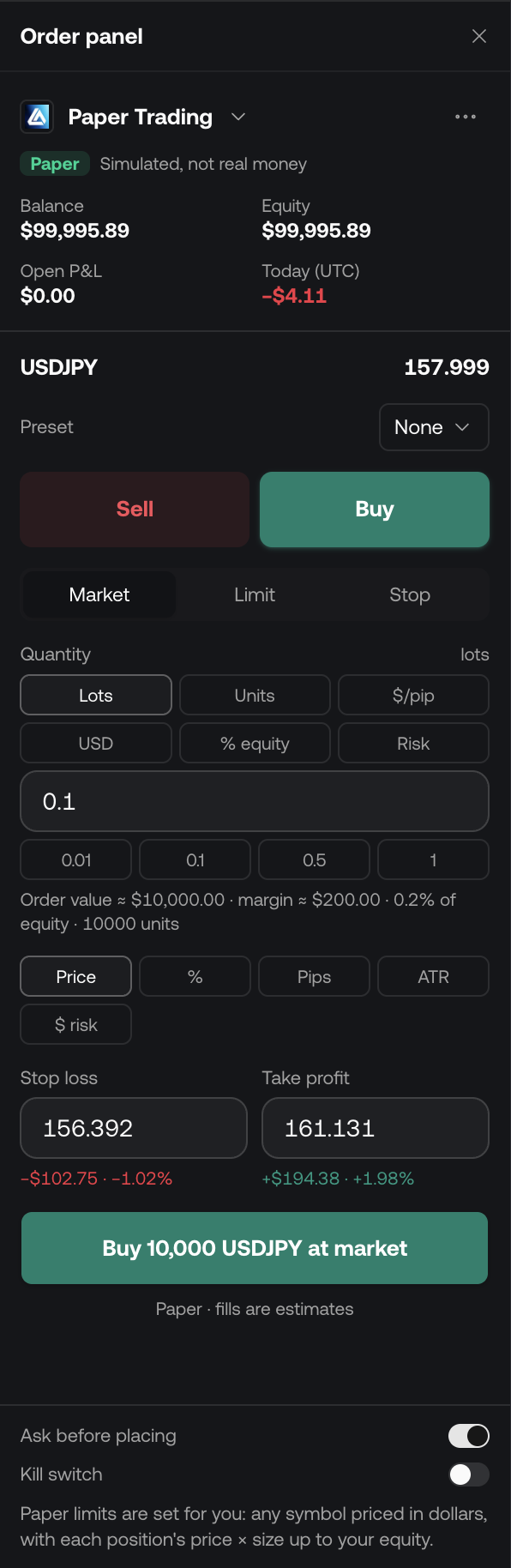](/images/charts/trading/order-panel.png)
The order panel. The account and its figures sit at the top; Ask before placing and the Kill switch sit at the bottom.
While you set an order up, its entry, stop loss and take profit already show on the chart as lines, each with the amount it would make or lose. Drag a line to change its price before you place the order.
[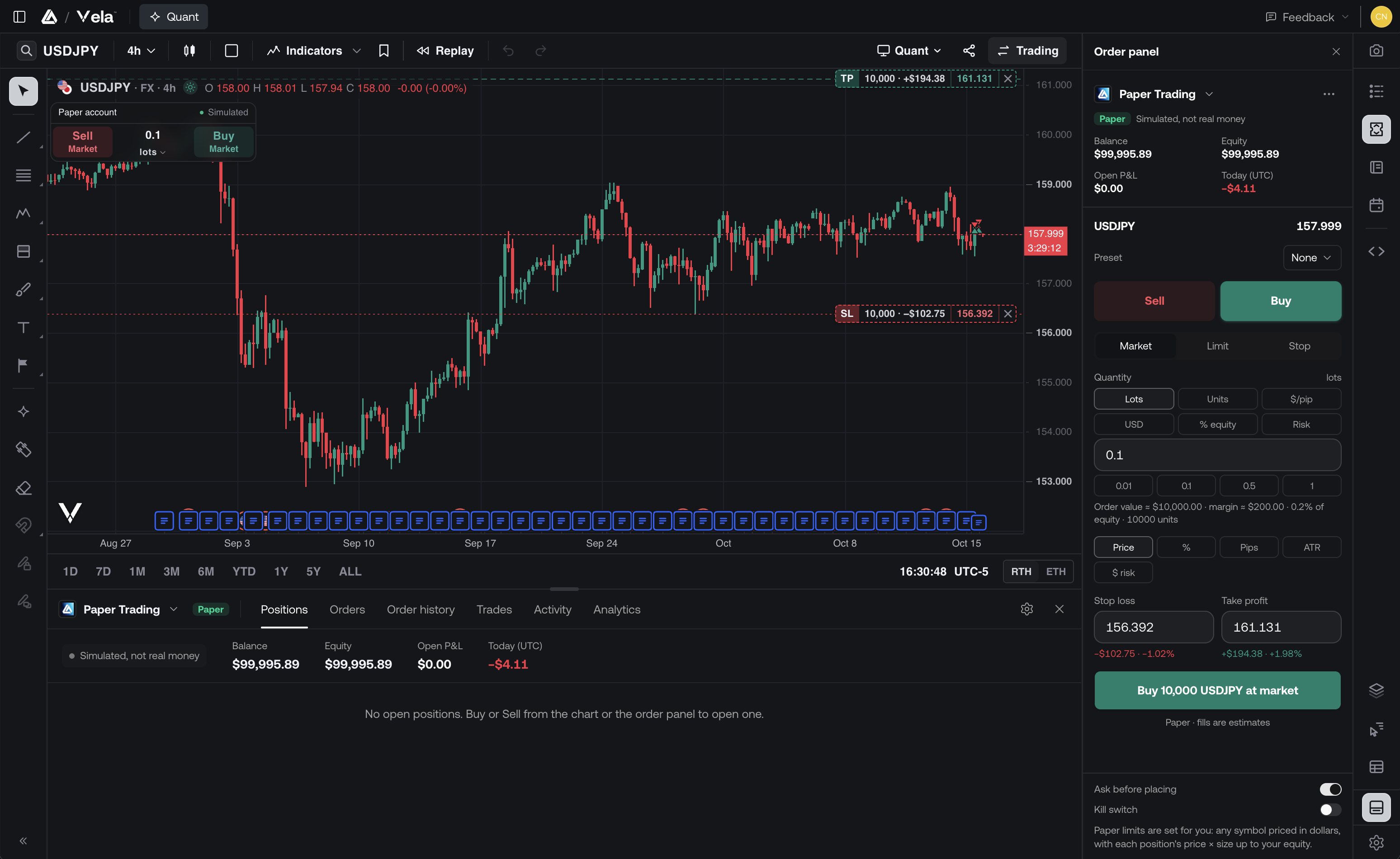](/images/charts/trading/draft-order-overview.png)
The order you are setting up shows on the chart before you place it.
[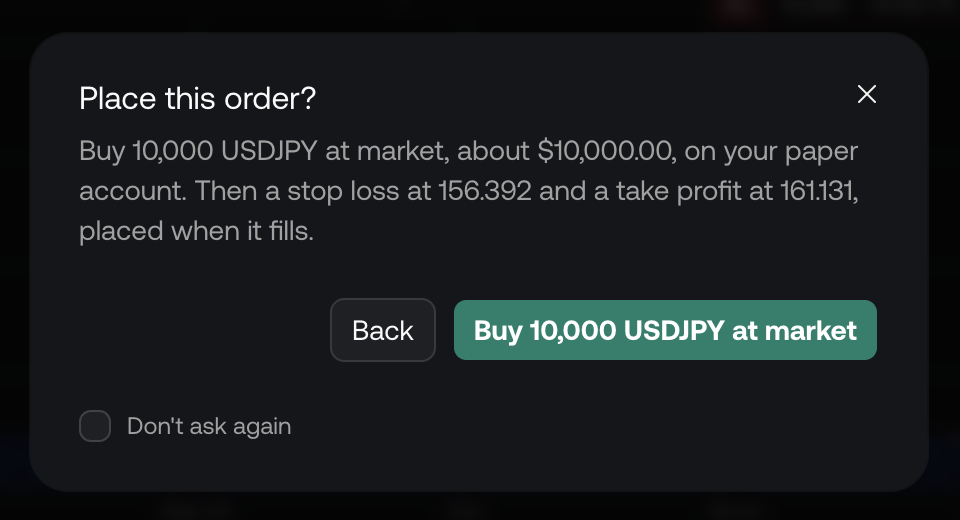](/images/charts/trading/order-confirm.png)
Ask before placing confirms the order, its value and its exits. Tick Don't ask again to skip it next time.
### Order types and time in force [#order-types-and-time-in-force]
| Order | Fills |
| ---------- | ------------------------------------------------------------------------- |
| **Market** | At once, at the price on the chart plus a simulated half spread |
| **Limit** | At the limit price when price reaches it |
| **Stop** | When price trades through the stop. Stops account for gaps and the spread |
Limit and stop orders also take a **Time in force**:
| Option | The order stands |
| ---------- | ----------------------------------------------------------------------------------- |
| **GTC** | Until you cancel it |
| **Day** | For the day's session. The panel says which close it ends at. Not offered on crypto |
| **IOC** | Filled at once, or canceled. Not offered on stops |
| **Until…** | Until a date and time you pick |
Day orders follow the market's holiday calendar: a Day order placed before a market holiday ends at the next real close.
### Exits [#exits]
A stop loss and take profit attached to an entry are placed when the entry fills and cancel each other: when one fills, the other is removed. A **trailing stop** follows the best price the trade reaches, not just the latest price.
Type exits in the unit that fits your plan, using the **Exits in** chips:
| Unit | Example |
| ----------------------------- | --------------------------------------------------- |
| **Price** | The exact price |
| **%** | A percentage from the entry |
| **Ticks** (**Pips** on forex) | A distance in ticks or pips |
| **ATR** | A multiple of the chart's ATR(14) |
| **$ risk** | The dollars lost at the stop, or made at the target |
### Sizing [#sizing]
How you size depends on what you trade. Pick the unit from the chips in the order panel, or from the drop-down under the size on the chart's Buy and Sell. The unit you pick is remembered for that kind of asset, on the chart, in the order panel and in [bar replay](/platform/charts/replay#trade-a-replay).
| Asset | Size in |
| --------------- | ------------------------------------------------------------------------ |
| Forex | Lots (100,000 units), units, US dollars per pip, US dollars, % of equity |
| Stocks and ETFs | Shares, US dollars, % of equity |
| Crypto | US dollars, the coin, % of equity |
| Gold and silver | Ounces, US dollars, % of equity |
| Futures | Contracts, % of equity |
**Risk** in the order panel sizes the trade from the dollars you are willing to lose at your stop loss. Set the stop, type the amount, and the size is worked out for you. A size typed in dollars stays as you typed it while the price moves.
[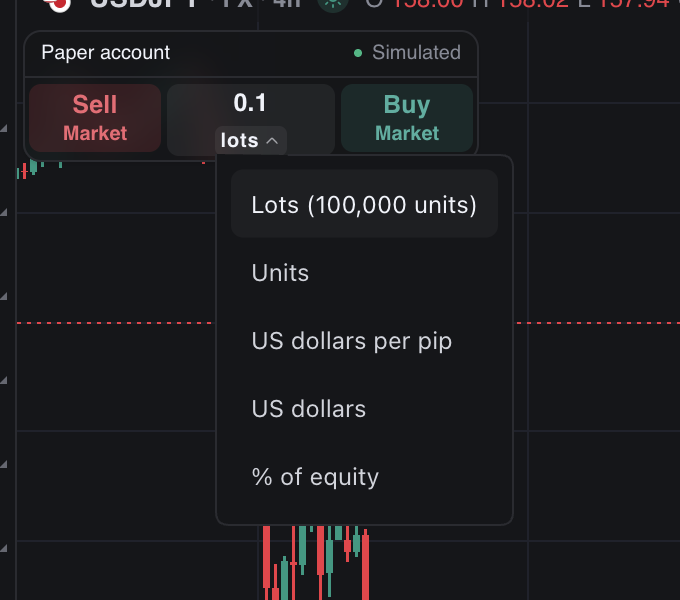](/images/charts/trading/buy-sell-units.png)
Change the size unit from under the size on the chart's Buy and Sell.
## Manage trades on the chart [#manage-trades-on-the-chart]
Open positions and working orders show as lines on the chart.
* **Drag** a working order's line to move it.
* **Drag** a stop loss or take profit out of an open position's line to add one.
* Click a line's **×** to cancel an order, or to close a position.
* On a position, the **×** offers **Close 25%**, **Close 50%**, **Close 75%** and **Close all**. The reverse button flips the position to the other side.
* **Right-click** the chart at a price to set up a buy or sell limit or stop there. Below the last price a buy is a limit and a sell is a stop; above it, the other way round.
[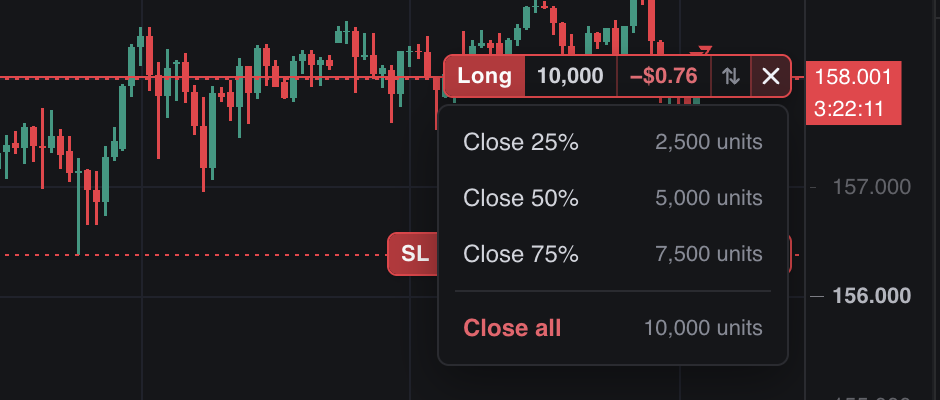](/images/charts/trading/close-partial.png)
Close part of a position straight from its line.
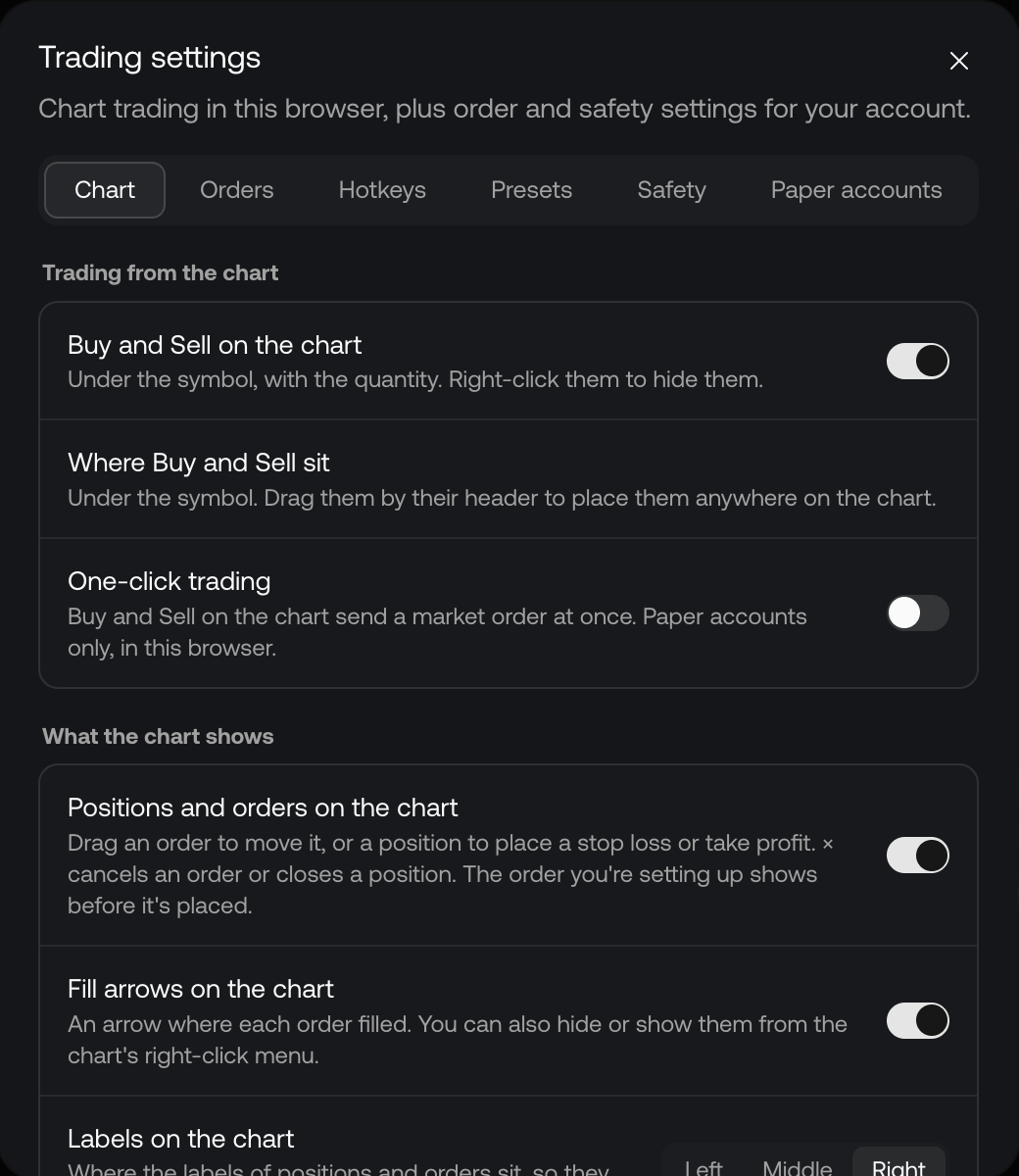
Right-click the Buy and Sell buttons to hide them, or drag them by their header to anywhere on the chart; their place is remembered.
## The trading panel [#the-trading-panel]
The trading panel under the chart shows the account you are trading, its **Balance**, **Equity**, **Open P\&L** and **Today (UTC)**, and six tabs:
| Tab | Shows |
| ----------------- | ----------------------------------------------------------------------------------------------------------------------------------- |
| **Positions** | Open positions with quantity, open P\&L, average entry, last price and realized P\&L, plus **Reverse** and **Close** |
| **Orders** | Working orders |
| **Order history** | Every order, filterable by Filled, Canceled and Rejected |
| **Trades** | Closed trades with net P\&L, return, run-up, drawdown, entry, exit, value and duration |
| **Activity** | A log of fills, moves and cancels |
| **Analytics** | Net P\&L, win rate, profit factor, expectancy, average win and loss, largest win and loss, max drawdown and a cumulative P\&L chart |
[](/images/charts/trading/trading-panel-positions.png)
The Positions tab. The account's balance and equity sit above every tab.
**Run-up** is the most a trade was ahead between its entry and exit, and **Drawdown** the most it was behind. Download the Trades tab with **CSV**.
[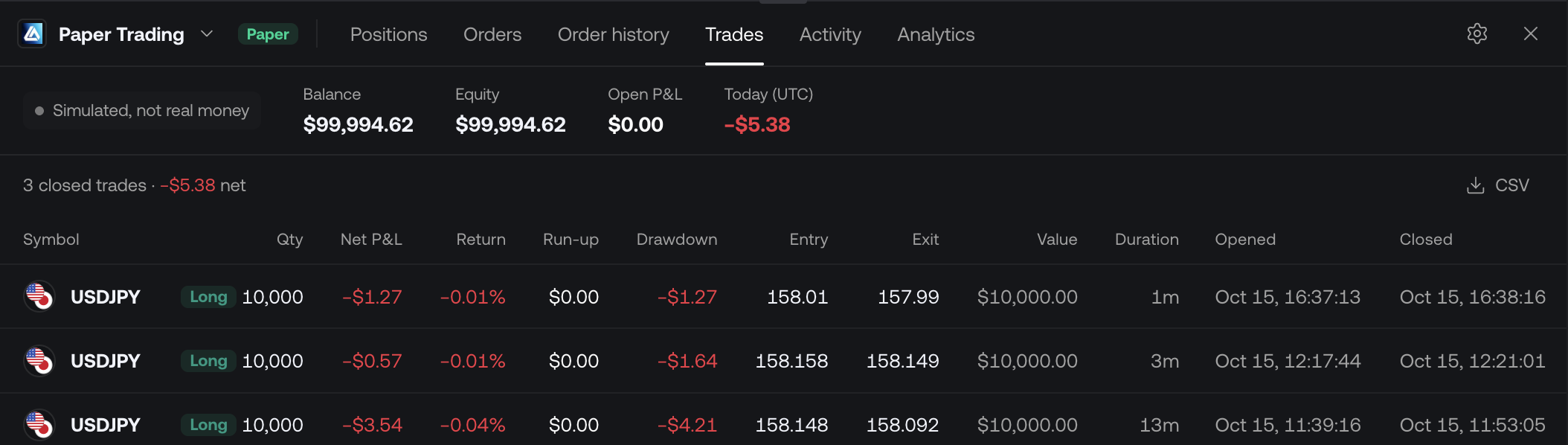](/images/charts/trading/trading-panel-trades.png)
The Trades tab, with run-up and drawdown for every closed trade.
Each paper account gets its own journal in the [Trade Journal](/platform/workspaces/journal), and its fills are recorded there, so you can review practice trades the same way as real ones.
## Paper accounts [#paper-accounts]
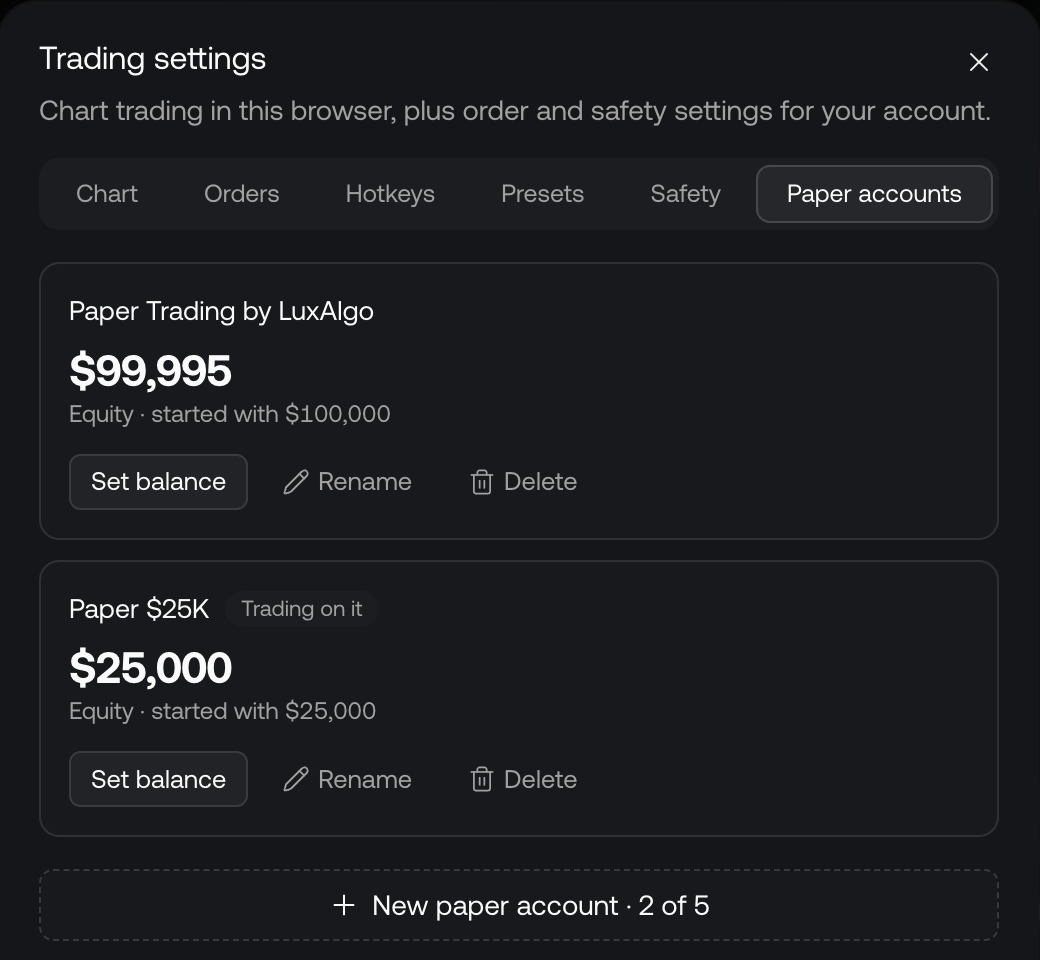
You can keep up to **5 paper accounts**, each with its own name, starting balance, positions and journal. A prop-firm candidate might keep one at a challenge's account size next to the default $100,000 account.
Manage them in **Trading settings › Paper accounts**:
* **New paper account** opens a dialog for a name and a starting balance between $1,000 and $10,000,000, in whole dollars.
* **Set balance** resets an account to a balance you pick.
* **Rename** and **Delete**. Your only paper account can't be deleted; reset it instead.
Switch the account you trade on from the account name at the top of the order panel or the trading panel.
[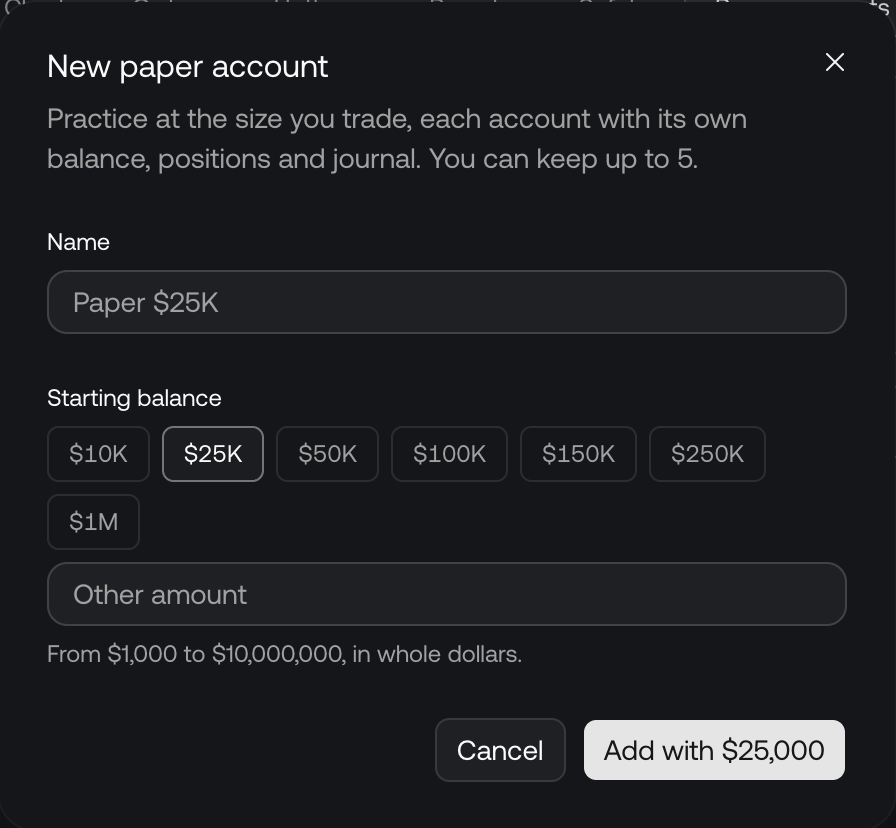](/images/charts/trading/new-paper-account.png)
Name a new paper account and pick its starting balance.
[](/images/charts/trading/trading-settings-paper-accounts.png)
Each paper account shows its equity and the balance it started with.
## Speed: presets, hotkeys and one-click [#speed-presets-hotkeys-and-one-click]
* **Order presets** save a size, exits and time in force under a name. Pick one from **Preset** in the order panel. You can keep up to 9.
* **Shift+B** and **Shift+S** set up a buy or a sell in the order panel.
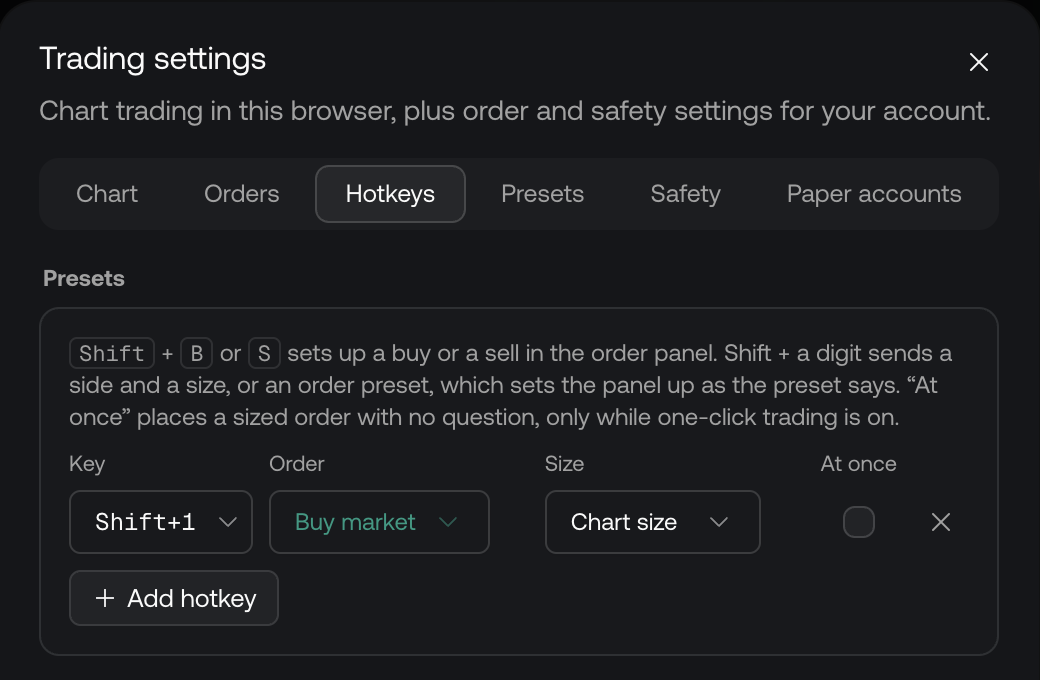
* **Shift+1** to **Shift+9** are yours to assign in **Trading settings › Hotkeys**: each sends a side and a size, or applies a preset.
* **One-click trading** (Trading settings › Chart) makes a click on the chart's Buy or Sell place a market order at once. Paper accounts only, in this browser.
* **Sounds** (Trading settings › Chart) play a tone when an order fills, is refused, moves or is canceled.
[](/images/charts/trading/trading-settings-chart.png)
The Chart tab controls trading from the chart in this browser.
[](/images/charts/trading/trading-settings-hotkeys.png)
Assign Shift+1 to Shift+9. At once places the order with no question, only while one-click trading is on.
Hotkeys never fire while you are typing or while a dialog is open. See every key in [Shortcuts](/platform/charts/shortcuts#trading).
## Markets, fills and margin [#markets-fills-and-margin]
Paper balances are in US dollars, so paper trading covers symbols priced in dollars:
* US stocks and ETFs
* Crypto quoted in USD, USDT or USDC
* Forex pairs quoted in USD, and pairs with USD as the base, such as USDJPY, counted in dollars
* Spot gold and silver
* Supported US futures, including minis and micros
Pairs with no dollar in them, such as EURGBP, and symbols listed abroad are refused with a message saying why.
| Asset | Margin |
| ----------------- | -------------------------------------------------------------------------------------- |
| Stocks and crypto | Paid in full |
| Forex | 50:1 |
| Gold and silver | 20:1 |
| Futures | About the exchange's margin, with micro and mini contracts counted at their real value |
Paper limits are set for you: each position's price × size can be up to your equity.
## Safety [#safety]
* **Ask before placing** (on by default) confirms orders from the order panel and moves on the chart. A limit or stop more than 5% from the price always asks.
* **Ask before closing a position** is on by default. Reversing a position always asks.
* The **Kill switch** stops trading on the account: new orders are refused until you turn it off.
## Trading with Quant [#trading-with-quant]
Quant, our coding agent, can read your paper account, propose orders and exits for you to approve, and watch the chart for a condition you describe. Nothing is placed until you approve it. See [Trading with Quant](/platform/quant/trading).
## Paper trading and replay [#paper-trading-and-replay]
While the chart replays the past, the order panel steps aside and the live Buy and Sell buttons hide. Trade the replay from the replay bar instead. See [Trade a replay](/platform/charts/replay#trade-a-replay).