# What is Quant? (/platform/quant/introduction)


Quant is our coding agent and the intelligence inside LuxAlgo, built into Vela, our next-generation charting platform. It sits next to the [chart](/platform/charts/introduction), reads what's on it, writes and repairs indicator and strategy code, proves it against history, and runs what you approve. It also works the chart itself: it sets up the symbol, timeframe, and layout, marks up levels and zones as real drawings, and reads exact prices, plot values, and trades. Ask in your own words or drop a screenshot; no code required.

![Quant adding volume confirmation to a Smart Money Concepts indicator on a BTC-USD chart](/images/quant/what-is-quant.png)

Under the hood, Quant writes &#x2A;*Pine Script®**, the same scripting language used across the trading industry. Every script Quant produces is real, inspectable code: open [**Pine editor**](/platform/charts/pine-editor) from the right-hand panel rail to review or edit it, then press **Run** to execute it against the chart's data. If you already know Pine Script®, you can edit the generated code directly and re-run it; if you don't, you never have to look at it.

One chat can create, edit, and remove **multiple scripts**, including indicators and strategies, and add scripts from the [LuxAlgo Library](/platform/charts/indicators#luxalgo-library). Scripts Quant creates are saved to your account and stay on the chart until removed; there is no separate step to commit them to the workspace. Find them under **My Scripts** in the [Indicators picker](/platform/charts/indicators#my-scripts), next to scripts you saved from the Pine editor. See [Several scripts in one chat](/platform/quant/indicators#several-scripts-in-one-chat).

In a multi-chart [layout](/platform/charts/introduction#layouts), new scripts go on the **active cell**: the chart you last clicked. Chart changes, markups, and data reads also target the active chart unless you name another chart in the layout. Quant's scripts are marked in the chart legend so you can tell them apart from library studies.

Quant code repair is included with **Premium**, **Ultimate**, and **AI Ultra**; every plan includes credits for generating scripts. See [Plans](/platform/account/plans) for the full comparison.

## What Quant can do [#what-quant-can-do]

<CardGroup cols="2">
  <Card title="Making indicators" icon="chart-line" href="/platform/quant/indicators">
    Write a study from a request, a screenshot, or a region of the chart. Manage several scripts in one chat, find them in My Scripts, and add Library indicators.
  </Card>

  <Card title="Making strategies" icon="sparkles" href="/platform/quant/strategies">
    Write or convert a strategy, backtest it on the chart's history, read its trades, and stress-test the results.
  </Card>

  <Card title="Drawing on the chart" icon="pencil" href="/platform/quant/drawing">
    Mark up fair value gaps, liquidity, structure, key levels, and your own scenarios as editable drawings on your chart's own candles.
  </Card>

  <Card title="Working the chart" icon="chart-candlestick" href="/platform/quant/working-the-chart">
    Set up the symbol, timeframe, chart type, range, and layout, read exact prices, plots, and trades, and try new script settings without new code.
  </Card>

  <Card title="FAQ" icon="clipboard-question" href="/platform/quant/faq">
    Answers to common questions, and every limit that applies to Quant in one place.
  </Card>
</CardGroup>

## Try it [#try-it]

<Steps>
  <Step title="Open Vela">
    Go to [vela.luxalgo.com](https://vela.luxalgo.com/chart), or click **Open Vela** in the sidebar. Quant opens beside the chart. You can browse a chart without an account; sign in to run scripts and keep your chat history.
  </Step>

  <Step title="Describe what you want">
    Type a request in the chat. It can be as simple as "An RSI oscillator with signals" or as specific as describing exact entry conditions, colors, and line styles. You can also paste a screenshot, or [select a region on the chart](/platform/quant/indicators#from-a-region-on-the-chart) and ask about what's in it.

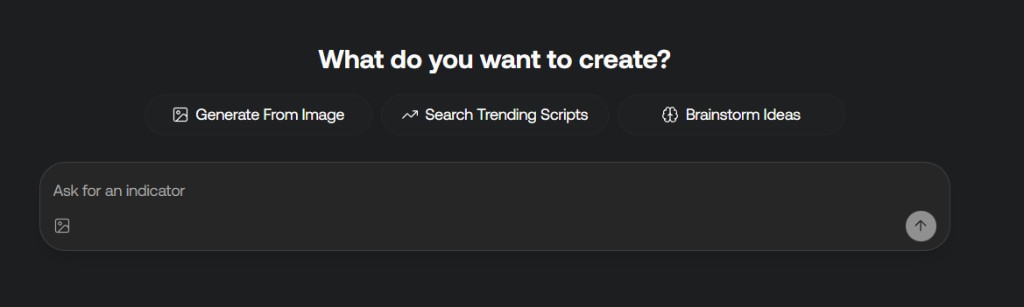
    On an empty chat, the chips under the prompt (**Indicator**, **Strategy**, **Fix my code**, **From a screenshot**, and **Brainstorm**) each open a short list of example requests. Picking one fills the prompt without sending it, so you can edit it first.
  </Step>

  <Step title="Review and run">
    Quant writes the script and plots it on the active chart. Open [**Pine editor**](/platform/charts/pine-editor) to inspect the Pine Script®, then **Run**. From here you iterate: ask for changes, create another script, or ask Quant to remove a script in the same chat. Name the script you want to change when the chat contains several.
  </Step>
</Steps>

## Ask about the chart [#ask-about-the-chart]

Quant isn't limited to code. Ask it any trading or chart question: what a pattern on the chart means, how an indicator works, or what would confirm or invalidate a setup. When the question is about the chart, Quant looks at the chart first. It answers from what Vela has (price and volume on any symbol and timeframe, and Orderflow from real trades where the market has it) and searches the web for outside facts that change. For an exact number, it [reads the chart's data](/platform/quant/working-the-chart#read-exact-chart-data) instead of estimating from an image.

Quant analyzes; it doesn't give personal financial advice or promise outcomes, and it treats a backtest as history, not a forecast.

## Follow Quant as it works [#follow-quant-as-it-works]

While Quant works, a live timeline shows each step: thinking, looking things up, writing a script, edits shown as diffs, compile errors, and chart changes. A line at the bottom shows the current step with a timer. Errors switch to **Fixed** once Quant repairs them. After it writes or edits a script, Quant also sees how the script ran: any runtime errors and, for a strategy, a one-line backtest summary (net P\&L, profit factor, trades, and max drawdown). It fixes runtime errors in code it wrote. If a Library indicator it added fails on Vela, it doesn't edit it; it tells you what failed and offers an alternative. Before chart work, such as a markup, it says in one line what it's doing. When the reply is done, the timeline folds into a one-line summary such as "Worked for 1m 42s · 1 strategy written · 2 edits"; click it to expand the steps again.

Replies lead with the answer, then use short paragraphs and lists. Caveats are grouped under **Notes**, and a reply ends with at most one follow-up question.

## Model and reasoning [#model-and-reasoning]

Click the model name below the prompt to open **Reasoning effort**. Choose an available effort level, or open **Model** to search the model list. Pin models you use often so they stay easy to find. The available models and effort levels can change; use the picker for the current choices.

The same menu includes **Fast**. Check the selected model, effort, and Fast setting before sending a request, especially when switching between quick edits and more involved work.

![Quant model picker with reasoning effort, Fast, and pinned models](/images/quant/model-reasoning.png)

## Attachments, web search, and voice [#attachments-web-search-and-voice]

Open &#x2A;*+** (**Add attachments and tools**) beside the prompt to attach files or a chart screenshot. When a script is open, the same menu can add it to your favorites.

There is no web search setting to turn on. When a request depends on outside facts that change, such as a prop firm's current rules, Quant searches the web on its own. Its sources appear as links in the reply and in the timeline ("Checked the web for …"); check them before relying on the answer.

The microphone starts **voice input** so you can dictate a request. Review the transcribed text before sending it. See [Making indicators](/platform/quant/indicators#from-a-screenshot) for image input and [chart-region capture](/platform/quant/indicators#from-a-region-on-the-chart) for a focused crop.

## Chat history and placement [#chat-history-and-placement]

When signed in, open **Chat history** above the conversation to return to a previous chat. Use **New Quant chat*&#x2A; (&#x2A;*+** at the top of the chat) when starting a separate idea, and **Chat options › Rename** to rename the current chat. Reopening a conversation lets you continue its discussion; [Pine editor version history](/platform/charts/pine-editor#version-history) is a separate, temporary session history.

Use **Chat options** to move Quant to the left or right of the chart. Drag the divider to resize the chat, or use the **Quant** control in the top bar to show or hide it. On the chart, clicking **Quant** in the left sidebar reopens a hidden chat and puts the cursor in the prompt.

## Credits [#credits]

Quant runs on monthly credits, one balance shared with the Strategy Screener. Generating and editing scripts consumes credits; bigger requests and longer conversations consume more.

| Plan      | Monthly credits |
| --------- | --------------- |
| Free      | 500             |
| Essential | 2,000           |
| Premium   | 5,000           |
| Ultimate  | 25,000          |
| AI Ultra  | 100,000         |

Credits reset on the first of every month. See [Monthly credits](/platform/account/credits) for credit packs and how plan changes affect your balance.

A message that fails before Quant answers isn't charged. On a long task, Quant may pause and offer **Continue**, and it stops before a step your balance can't cover. See [Not charged and paused replies](/platform/account/credits#not-charged-and-paused-replies).

<Note>
  Long chats consume credits faster, because the whole conversation is context for every new request. Start a new chat around 50 messages, especially when you switch to an unrelated script.
</Note>

## Strategy Screener [#strategy-screener]

[Strategy Screener](/platform/ai-backtesting/introduction), previously called the AI Backtesting Assistant, sits beside Quant on LuxAlgo. Use it to find strategies built from LuxAlgo toolkit conditions, inspect their backtests, and set [strategy alerts](/platform/ai-strategy-alerts/introduction). It shares your credit balance with Quant.