# Overview (/platform/workspaces/journal)
The **Journal** is your trading log on [luxalgo.com/quant](https://www.luxalgo.com/quant). It lives on your **account**, not inside a [workspace](/platform/workspaces): switching layouts keeps the same accounts, fills, and notes. Sharing a workspace never includes journal data.
You need to be signed in. The journal is included on every plan.

Click **Journal** in the workspace header, next to **Panels**. A column opens beside the charts.
A fresh journal starts empty. [Connect a broker, import a statement, or create a manual account](/platform/workspaces/journal/accounts).
Broker accounts [refresh daily](/platform/workspaces/journal/accounts#sync) on their own, or immediately from **Refresh** in the journal header. Manual and import accounts take fills you add by hand, including from the [chart](/platform/workspaces/journal/trades#from-the-chart).
[Maximize](/platform/workspaces/journal/dashboard) for the dashboard, [open a trade](/platform/workspaces/journal/trades#review-a-trade) to debrief it, or click a calendar day for that session.
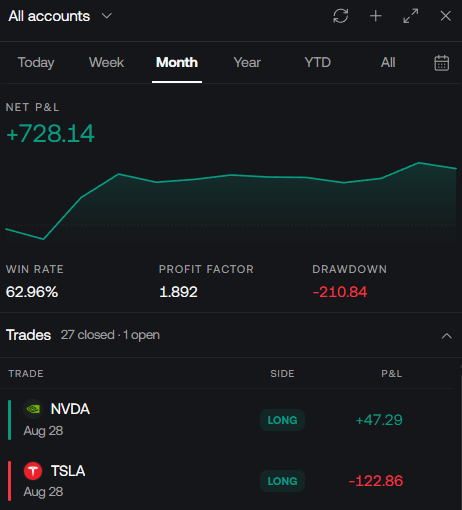
## The column and the dashboard [#the-column-and-the-dashboard]
The compact column is the everyday surface: account, date range, headline P\&L, the trade list, and today's note. **Maximize** replaces the terminal with the full journal. **Return to chart** puts the column back. The same account and range carry across.
The maximized sidebar is the rest of this section:
Connect a broker, import a statement, start a manual book, or rename and delete.
Equity, Edge Score, daily P\&L, drawdown, and the calendar.
Log fills, review a round trip, and see trades on the chart.
Day notes from the column, the Notes page, or the chart.
Where P\&L comes from: weekday, hold time, symbol, tags.
One account against another, or this range against the last.
## Trades on the chart [#trades-on-the-chart]
While the Journal is open, matching trades paint on the price pane of the [active chart](/platform/charts/introduction#layouts):
* An **entry** triangle at average entry (up for longs, down for shorts)
* An **exit** flag at average exit
* A **dashed line** between them carrying the net P\&L
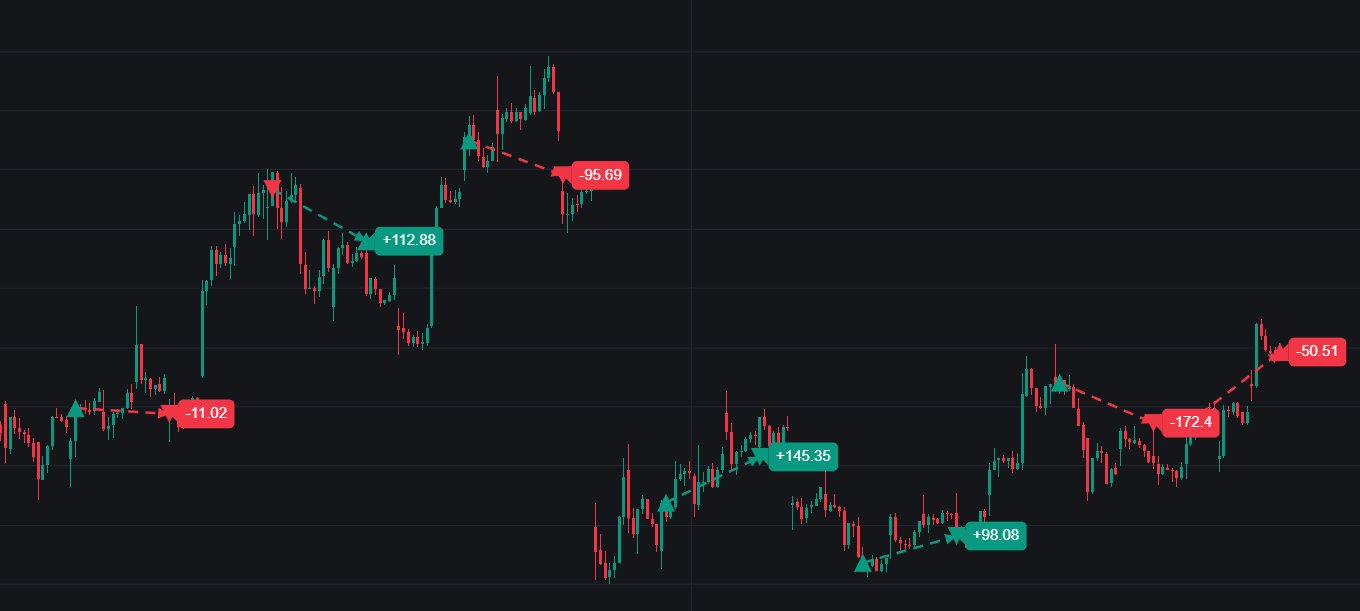
Markers follow the selected account (or **All accounts**) and only the chart's current symbol. Closing the Journal removes them.
They are not drawings. They do not save with the workspace, and they do not use an indicator slot. How to log a fill from the chart, and how to jump a row back onto the candles, is on [Trades](/platform/workspaces/journal/trades).
## What a trade is [#what-a-trade-is]
You log **fills**. The journal derives each **round trip** (flat → flat) from them: average entry and exit, fees, net P\&L, duration, and win / loss / breakeven. A second fill on the other side of the same symbol closes or reduces the position.
| Status | Meaning |
| ------------------ | ------------------------------------ |
| **Open** | Quantity is still on |
| **Win** / **Loss** | Closed, net P\&L above or below zero |
| **Breakeven** | Closed, net P\&L is zero |
Your tags, rating, stops, and notes stay attached when fills are re-synced or re-imported. Day boundaries follow your journal timezone, seeded from the browser the first time you open the journal.