# Order Book (/platform/workspaces/order-book)
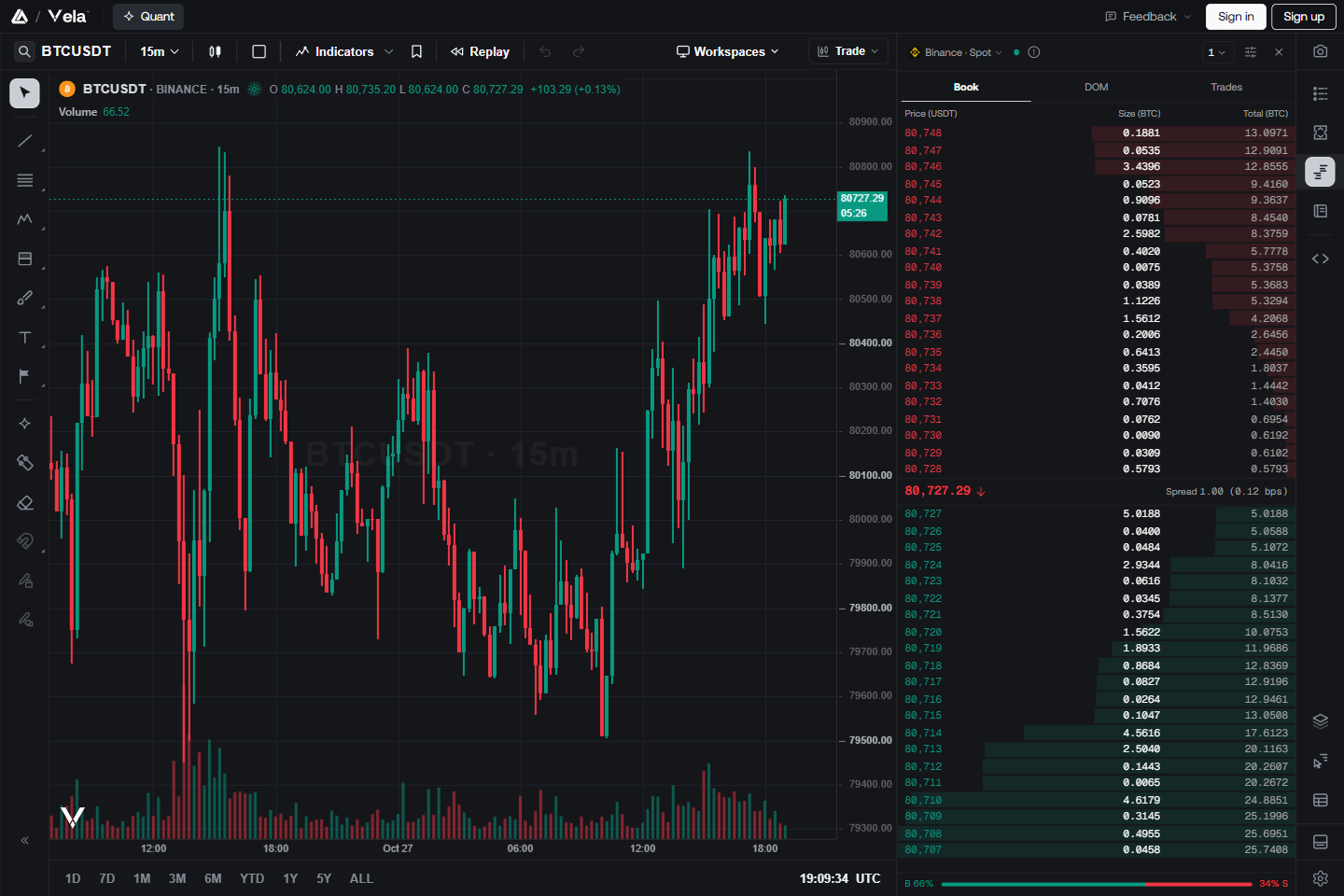
The **Order book** panel shows what is happening inside the market right now, beside your chart in [Vela](https://vela.luxalgo.com/chart), our next-generation charting platform. It has three views:
* **Book**: the orders waiting to buy and to sell, price by price.
* **DOM**: the same orders on a price ladder that also counts what has traded at each price.
* **Trades**: every trade as it happens, newest on top (often called "Time & Sales" or "the tape").
It always follows the chart you are working on. Change the symbol and the panel changes with it. You don't need an account to read it.
[](/images/workspaces/order-book/overview.png)
The Order book panel beside a BTCUSDT chart, on the Book view.
## Open the Order book [#open-the-order-book]
Open a crypto chart from Binance, Binance.US, Coinbase or Hyperliquid, for example **BTCUSDT** on Binance.
Click the **Order book** icon in the right-hand [panel rail](/platform/workspaces/panels), just below **Order panel**.
Choose **Book**, **DOM** or **Trades** from the tabs under the panel's top bar.
With several charts on screen, the panel shows the market of the chart you last clicked.
### Which markets have an order book [#which-markets-have-an-order-book]
| Exchange | Markets |
| --------------- | -------------------------- |
| **Binance** | Spot and perpetual futures |
| **Binance.US** | Spot |
| **Coinbase** | Spot |
| **Hyperliquid** | Perpetual futures and spot |
Stocks, ETFs, forex, futures and commodities have no public order book to show. On those charts the panel says **No order book for** the symbol and lists the exchanges that have one.
## The basics in plain words [#the-basics-in-plain-words]
If you are new to order books, these are the few words you need:
* **Bid**: an order waiting to **buy** at a price. Bids are green and sit below the current price.
* **Ask**: an order waiting to **sell** at a price. Asks are red and sit above the current price.
* **Size**: how much is waiting at that price, in the coin (BTC) or in its dollar value (USDT). You choose which in the settings.
* **Spread**: the gap between the best bid (the highest price someone will pay) and the best ask (the lowest price someone will sell at).
* **A trade** happens when someone stops waiting and takes an order that is already there. If a buyer takes an ask, it's a **buy** (green). If a seller hits a bid, it's a **sell** (red).
The book shows where people are **waiting** to trade. The trades show where people **actually** traded. Seeing both side by side tells you more than either one alone.
The book changes many times a second, and orders can be added or pulled at any moment. Treat it as a picture of right now, not a promise of what price will do.
## The top bar [#the-top-bar]
From left to right, the panel's top bar has:
| Control | What it does |
| ----------------------- | --------------------------------------------------------------------------------------------------------------------------------- |
| **Exchange** | Shows which exchange the data comes from (for example **Binance · Spot**). Click it to read another exchange, or several at once. |
| **Status dot** | Green when the data is live, amber while it connects or reconnects, red when it isn't available. |
| **!** (About this data) | Hover it to read where the data comes from and its limits. See [About the data](#about-the-data). |
| **Price grouping** | The number button, for example **1**. Groups prices into bigger steps. |
| **Settings** | The sliders icon. Each view has its own settings. |
| **Close** | Closes the panel. |
### Choose the exchange [#choose-the-exchange]
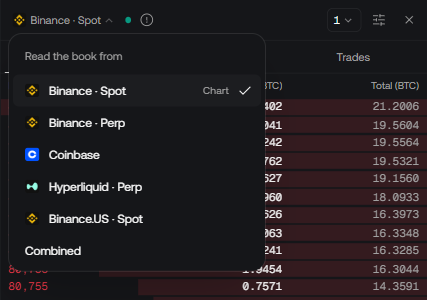
The same coin trades on several exchanges, each with its own order book. Click the exchange name to open **Read the book from**:
* The chart's own exchange is marked **Chart**. This is what the panel reads at first.
* Other exchanges that list the same coin are offered below it, for example **Binance · Perp**, **Coinbase** and **Hyperliquid · Perp** for Bitcoin.
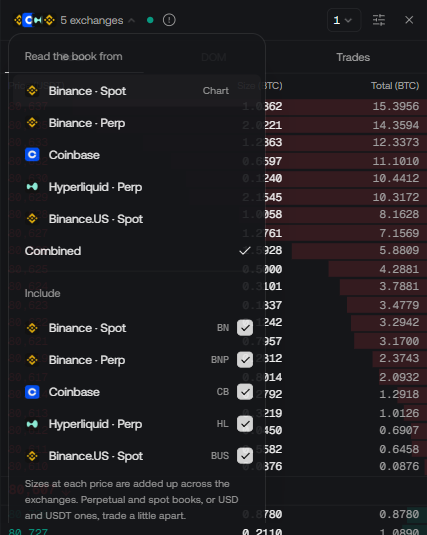
* **Combined** adds the books together. Under **Include**, tick the exchanges you want (at least two).
[](/images/workspaces/order-book/exchange-menu.png)
Pick the exchange to read. The chart's own market is marked Chart.
With **Combined**, the sizes at each price are added up across the exchanges you include, and the top bar reads, for example, **5 exchanges**. Keep in mind that perpetual and spot markets, or USD and USDT markets, usually trade at slightly different prices, so their books don't line up perfectly.
[](/images/workspaces/order-book/combined.png)
Combined adds the books of the exchanges you include. Each has a short code, such as BN for Binance spot.
Your exchange choice is remembered for each market. Choosing the chart's own exchange again goes back to the default.
### Group prices [#group-prices]
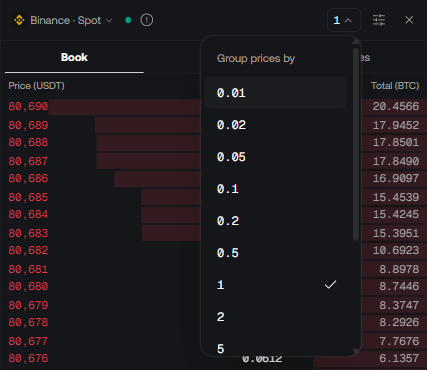
A busy book can have an order at almost every cent. **Price grouping** adds nearby prices together into bigger steps so you can see where the real size sits. With **10**, the rows go 80,700, 80,710, 80,720 and so on, and each row adds up every order in its step. For Bitcoin on Binance, the steps run from **0.01** to **200**.
[](/images/workspaces/order-book/grouping.png)
Group prices into bigger steps to see where the size is.
The panel opens grouped by **1** where the market offers it, and remembers the grouping you choose for each market.
## Book [#book]
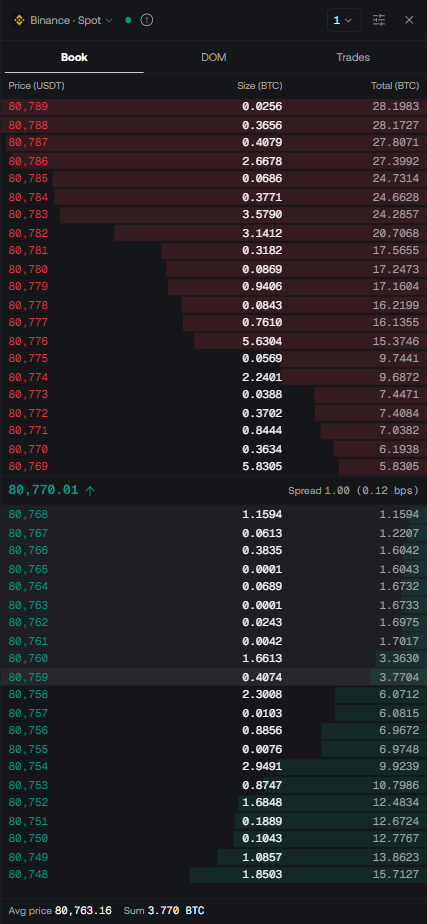
The **Book** view lists the waiting orders closest to the current price.
[](/images/workspaces/order-book/book.png)
Asks on top, bids below, and the last trade and spread in the middle. Hovering a row shows the footer's Avg price and Sum.
* **Asks** (red) are on top, with the lowest ask just above the middle.
* **Bids** (green) are below, with the highest bid just under the middle.
* The **middle row** shows the last trade's price, with an arrow for whether it went up or down, and the **spread**. The spread is also given in **bps** (basis points: 1 bps is 0.01%).
* Each row has the **Price**, the **Size** waiting there, and the **Total**: the size added up from the middle out to that row.
* The shaded bars show the **depth**: the longer the bar, the more is waiting.
**Hover a row** to see what it would take to trade through the book to that price. The rows from the middle to your pointer light up, and the footer shows the **Avg price** you would get on average and the **Sum** of everything on those rows.
When you aren't hovering, the footer shows a bar comparing the two sides: **B** is the share of the size on the bid side and **S** the share on the ask side, counting the rows you can see.
### Book settings [#book-settings]
Open the sliders icon on the Book view to change:
* **Show sizes in**: the coin (for example **BTC**) or its dollar value (**USDT**).
* **Depth style**: **Bars**, **Area**, **Area + line** or **Line**.
* **Depth shows**: **Running total** (the bars grow as the total adds up) or **Each level** (each bar shows only its own row).
* **Style**: your own colors for **Bids and buys** and **Asks and sells**, with **Reset colors** to go back.
## DOM [#dom]
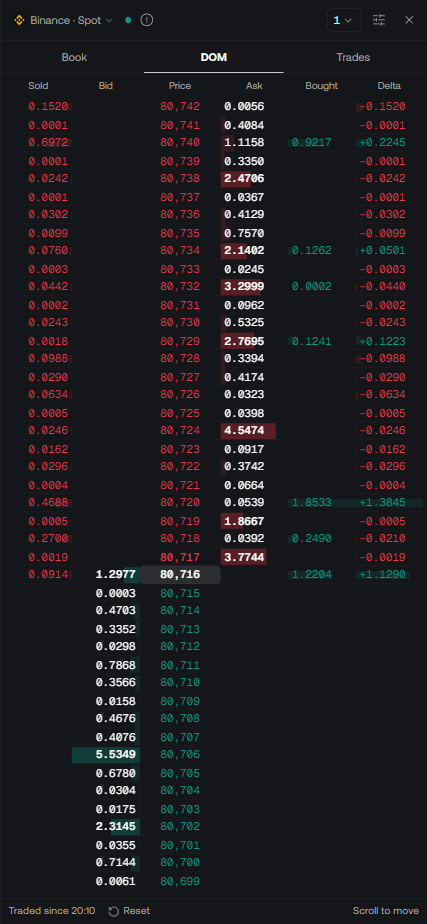
**DOM** stands for "depth of market". It's a **price ladder**: one row for every price step, in a fixed order, with the current price in the middle. Unlike the Book, the rows don't jump around when orders come and go, so you can watch a price level fill up, get traded, or get pulled.
[](/images/workspaces/order-book/dom.png)
The price ladder. Sold, Bought and Delta count the trades since the panel opened.
Each column, from left to right by default:
| Column | What it shows |
| ---------- | ------------------------------------------------------------------------------------------------------------------------------------------------- |
| **Orders** | Your own position and working orders on this market. Shows only while you have some. See [Trade from the order book](#trade-from-the-order-book). |
| **Sold** | How much was **sold into the bid** at that price: sellers who didn't wait. |
| **Bid** | The size waiting to buy at that price. |
| **Price** | The price. The last traded price is highlighted. |
| **Ask** | The size waiting to sell at that price. |
| **Bought** | How much was **bought from the ask** at that price: buyers who didn't wait. |
| **Delta** | Bought minus sold. Green and positive when buyers took more, red and negative when sellers did. |
| **Volume** | Everything traded at that price, both sides together. Off by default. |
| **Last** | The newest trade at that price in the last 5 seconds. Off by default. |
**Sold**, **Bought**, **Delta** and **Volume** count the trades since you opened the panel, not the whole day. The footer shows when counting started (for example **Traded since 20:10**). Press **Reset** to start counting again from now.
**Scroll** over the ladder to move it up or down.
### Following the market [#following-the-market]
When the price moves, the ladder can follow it or stay still. Choose in the DOM settings under **Follow the market**:
* **Auto** (the default): the ladder follows the price, but holds still while your pointer is on it, unless the price would leave the screen.
* **Fixed**: the ladder stays where it is. A **Center** button appears when the price has moved away; press it to bring the price back to the middle.
* **Timed**: the ladder holds still while your pointer is on it, and re-centers a few seconds after you move the pointer away. Pick **5**, **10**, **30** or **60** seconds.
### Large orders [#large-orders]
Large waiting orders stand out in bold with a stronger bar, and the very largest get an outline. Under **Highlight large orders**, choose what counts as large:
* **Relative**: a multiple (**2×**, **3×**, **5×**, **10×** or **20×**) of the typical order waiting near the price. **3×** is the default.
* **Set amount**: a value you type, in the market's quote currency (USDT on a BTCUSDT chart). At that value or more, an order stands out.
### DOM settings [#dom-settings]
[](/images/workspaces/order-book/dom-settings.png)
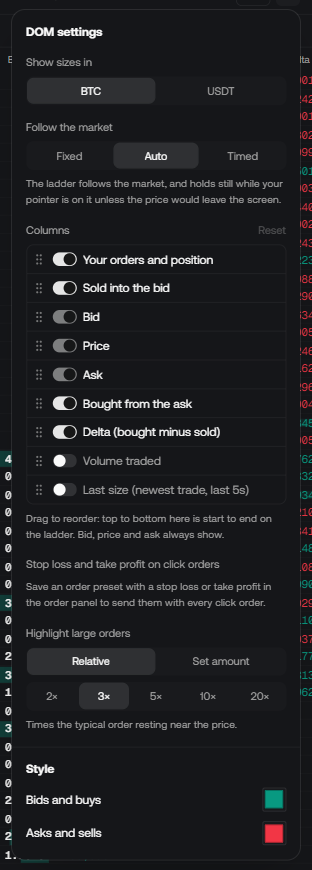
The DOM settings. Drag the handles to reorder the columns.
* **Show sizes in**: the coin or its dollar value.
* **Follow the market**: see [Following the market](#following-the-market).
* **Columns**: turn columns on or off, and drag them to change their order. Top to bottom in the list is left to right on the ladder. **Bid**, **Price** and **Ask** always show. **Reset** puts the columns back as they were.
* **Stop loss and take profit on click orders**: see [Click to trade](#click-to-trade).
* **Highlight large orders**: see [Large orders](#large-orders).
* **Style**: your own colors for both sides.
## Trades [#trades]
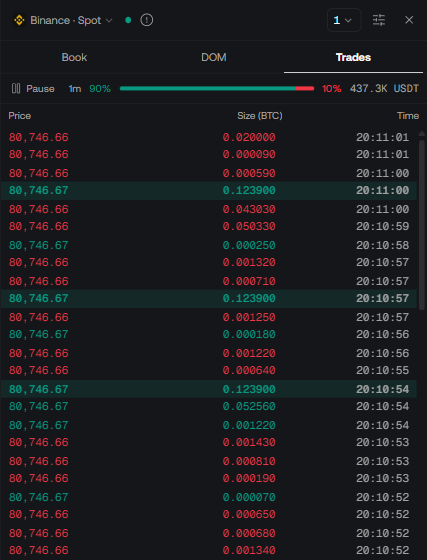
The **Trades** view lists every trade as it happens, newest on top. Each row has the **Price**, the **Size** and the **Time**.
[](/images/workspaces/order-book/trades.png)
Every trade, newest on top. Highlighted rows are large trades.
* **Green** rows are buys: someone bought from the ask. **Red** rows are sells: someone sold into the bid.
* **Highlighted** rows are large trades. The largest are highlighted more strongly.
* The bar at the top sums up the **last minute** (**1m**): the share bought on the left, the share sold on the right, and the total value traded.
* **Pause** freezes the list so you can read it. While paused, a button at the bottom counts the new trades; click it (or **Resume**) to catch up.
* With **Combined**, each trade shows the logo of the exchange it happened on.
The list keeps the latest 200 trades.
### Trades settings [#trades-settings]
[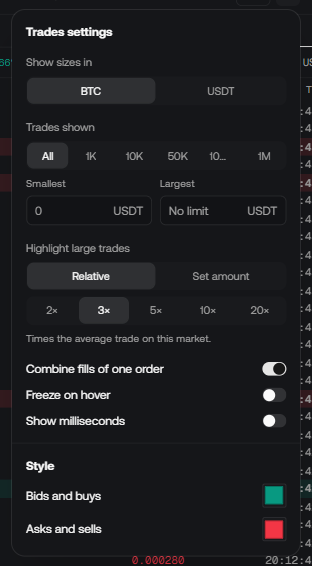](/images/workspaces/order-book/trades-settings.png)
Filter out small trades, choose what counts as large, and set how the list behaves.
* **Show sizes in**: the coin or its dollar value.
* **Trades shown**: hide small trades. **All** shows every trade; **1K**, **10K**, **50K**, **100K** and **1M** show only trades worth at least that much in the quote currency (USDT on a BTCUSDT chart). Or type your own **Smallest** and **Largest** values.
* **Highlight large trades**: **Relative** (a multiple of the average trade on this market) or **Set amount** (a value you type).
* **Combine fills of one order** (on by default): one big order often fills against many small ones at once. This joins those pieces into one row, so you see the order as it was placed.
* **Freeze on hover**: the list holds still while your pointer is over it. Off by default.
* **Show milliseconds**: adds milliseconds to the time.
* **Style**: your own colors for buys and sells.
## Right-click a price [#right-click-a-price]
Right-click any row in the Book, the DOM or Trades to act on its price:
* **Draw a line at** the price: puts a horizontal line on your chart, in the side's color.
* **Draw area** (Book only): draws a box on the chart from the best price to that row.
* **Copy price**: copies the price to your clipboard.
[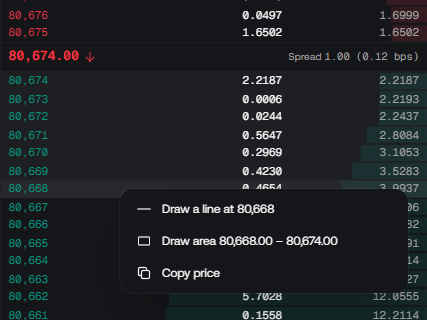](/images/workspaces/order-book/row-menu.png)
Mark a level from the book on your chart in one click.
This is handy for marking a big wall of orders on the chart so you can see whether price reacts to it.
## Trade from the order book [#trade-from-the-order-book]
When you are signed in and trading on a [paper account](/platform/charts/trading), the order book can place orders for the chart's symbol too. Paper trading uses simulated money: nothing is sent to an exchange.
### Right-click to set up an order [#right-click-to-set-up-an-order]
The right-click menu adds a buy and a sell at that row's price, with the order type and size spelled out, for example a **Buy limit** and a **Sell stop** for a price below the market. Choosing one opens the [order panel](/platform/charts/trading#place-an-order) with the order ready and its line on the chart, so you can add a stop loss and take profit before you place it.
The order type is picked for you, the same way as on the chart's own menu:
| Price you pick | Buy becomes | Sell becomes |
| -------------------- | ----------------------------------------------------- | ----------------------------------------------------- |
| Below the last price | A **limit** order (waits for the price to drop to it) | A **stop** order (sells if the price falls to it) |
| Above the last price | A **stop** order (buys if the price rises to it) | A **limit** order (waits for the price to rise to it) |
### Click to trade [#click-to-trade]
On the DOM, **Click to trade** (bottom left, with a lock) lets you place orders straight from the ladder:
1. Click **Click to trade** to unlock it. It turns amber.
2. Hover the **Bid** column to buy at that row, or the **Ask** column to sell. A label beside your pointer reads back the order: its side, type, size and price, plus the stop loss and take profit going with it.
3. Click to place it.
Some things to know:
* It works on **paper accounts** only.
* It **starts locked** every time you load Vela, so a click meant only to read a price never places an order.
* The size is the one the chart's **Buy** and **Sell** use, set in the order panel.
* With **Ask before placing** on (the default), you confirm each order in a **Place this order?** dialog first. The **Kill switch** still stops every order. See [Safety](/platform/charts/trading#safety).
* To send a stop loss and take profit with every click, pick an [order preset](/platform/charts/trading#speed-presets-hotkeys-and-one-click) that has them under **Stop loss and take profit on click orders** in the DOM settings. The default is **None**. If the preset's exits can't be worked out yet (for example an ATR-based stop before the chart has loaded), the order isn't placed.
### Your orders on the ladder [#your-orders-on-the-ladder]
While you have a position or working orders on this market, the **Orders** column shows them on their price rows, styled like their lines on the chart:
* Your **position** shows its profit or loss.
* **Working orders** show their size, and their stop loss and take profit show as **SL** and **TP**.
* **Drag** a working order, or its SL or TP, to another row to move it.
* Hover one and click its **x** to cancel the order or remove the exit. On your position, the **x** closes it through the trading panel, which asks you first.
## Your settings are saved [#your-settings-are-saved]
The panel remembers the view you were on, every view's settings, your price grouping and your exchange choice for each market. They are saved with your [workspace](/platform/workspaces), alongside your other panels.
## About the data [#about-the-data]
Hover the **!** next to the exchange name for these notes at any time.
* The **book** comes from LuxAlgo's market data servers: up to the 100 best prices on each side, updated up to ten times a second, grouped at the step you pick.
* **Hyperliquid** publishes only 20 prices a side, refreshed by the exchange every few seconds.
* **Trades** come straight from each exchange's own public feed.
* **Combine fills** works a little differently per exchange. On Hyperliquid it joins the exact fills of one order. On Binance it joins the trades of the same millisecond, and on Coinbase those within 10 milliseconds, which is a close estimate.
* **Coinbase** reports each trade from the side of the order that was waiting. The panel flips it so that, like every other exchange, the color shows the side that took the trade.
* **Combined** books are read at the largest price step of the exchanges you include.
* **Sold**, **Bought**, **Delta** and **Volume** on the DOM count trades since the panel opened (or since **Reset**), not the whole session.
The order book is a live tool, separate from the [order-flow chart types and indicators](/platform/charts/order-flow/introduction), which are built from recorded trades and work on past bars too.
## Troubleshooting [#troubleshooting]
Order books cover crypto on Binance, Binance.US, Coinbase and Hyperliquid. Stocks, ETFs, forex, futures and commodities have no public order book to show. Chart a coin on one of those exchanges instead.
Some exchanges don't serve their trade feed to every country. The Book and DOM still work. For trades, pick another exchange for the same coin from the exchange menu, such as **Coinbase** or **Binance.US**.
**No public order book** means the exchange doesn't publish a book for that market. **Order book unavailable** means live books can't be reached right now; try again a little later.
They only count trades since you opened the panel, or since you last pressed **Reset**. Leave the panel open and they build up.
Trading from the order book needs a signed-in account with a paper account selected in the order panel, on the chart's symbol. Click to trade works on paper accounts only.