# Docked view (/platform/workspaces/watchlist)
The **watchlist** keeps the symbols you follow one click away from the [chart](/platform/charts/introduction). It lives in [Panels](/platform/workspaces/panels), independent of any single chart, and saves and [shares](/platform/workspaces#share) with the [workspace](/platform/workspaces).
The compact panel is the everyday surface. **[Advanced view](/platform/workspaces/watchlist/advanced)** replaces the terminal with the full watchlist: analytics, a data table, sections, and news.
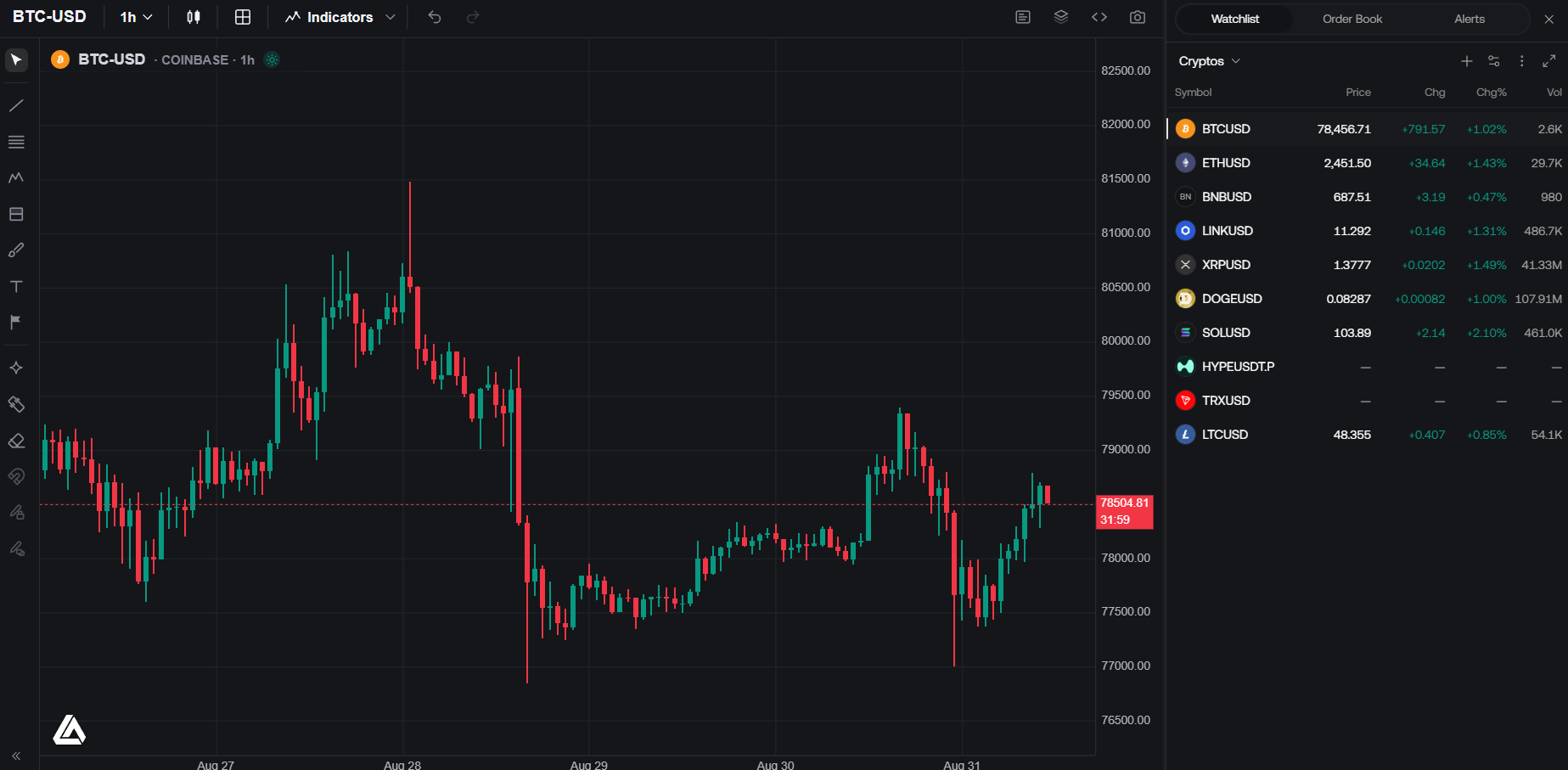
Click **Panels** in the header, then **Watchlist**.
Use **Add symbol** to open the same Symbol Search as the chart. Hover a row and click **Remove** to drop it. Keep separate lists for separate routines: one per market, strategy, or session.
Click a row and it loads on the [active chart](/platform/charts/introduction#layouts). In a multi-chart layout, click the target cell first. The watchlist always feeds the active cell. The symbol on the chart is highlighted in the list.
## Lists [#lists]
Signed in, the name in the header is a picker. Switch lists from there, or choose **New watchlist**. The ⋮ menu **Renames** or **Deletes** the list you are on. Deleting removes the symbols in it.
Without an account you get one local list. Sign in to keep multiple lists and sync them.
The list you have open is saved with the workspace, so each setup can sit on a different watchlist.
## Quotes, columns, and order [#quotes-columns-and-order]
Each row shows a logo, the symbol, and live quotes. The gear opens **Columns**: **Price**, **Change**, **Change %**, and **Volume (24h)**. Click a column header to sort; click again to flip the direction.
Drag a row to set your own order. That order is kept, and it clears any active sort.
## Advanced view [#advanced-view]
**Advanced view** (maximize) in the panel header opens the full watchlist over the terminal. **Return to chart** puts the panel back.
Summary metrics, Price / Financials / News, grouping and sections, and allocation.
Watchlist limits depend on your plan: **Free** 2 lists of 10 symbols; **Premium**, **Ultimate**, and **AI Ultra** have unlimited lists and 500 symbols per list.