
Alerts
The Oscillator Matrix® can alert users for multiple events relevant to the existing features in the toolkit. To learn more about how to set alerts in general see how to create alerts on tradingview.
In order for an alert to work in the toolkit make sure the related feature is enabled
Any alert() function call
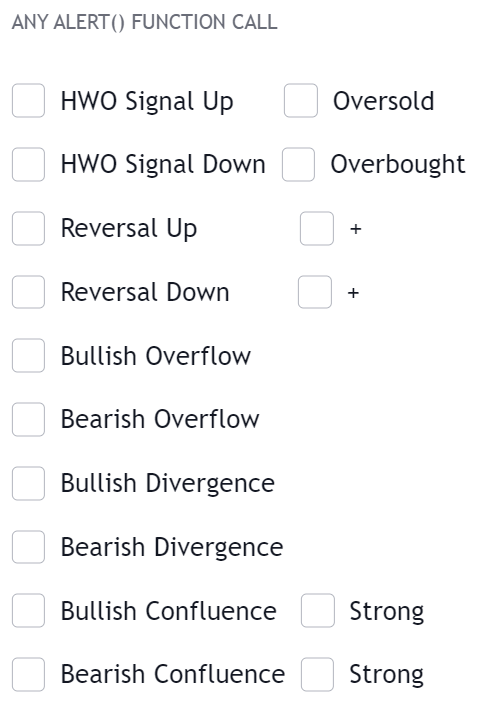
It possible to set only one alert alerting for multiple selected conditions by the users.
Conditions can be selected in the Any alert() function call group in the indicator settings. Then the user can set an alert by selecting "any alert() function call" as condition.
Alert conditions for the "any alert() function call" use a once per bar close frequency
Any Alert() Function Call Message
Users can set a custom message that will be used when an any alert() function call condition is triggered in the message field below the list of conditions. Users can use placeholders to customize messages and return useful information, the following placeholders are supported:
Symbol Placeholders
| Placeholder | Description | Example |
|---|---|---|
{default} | Default message associated with the trigerred condition | "Bullish Divergence" |
{ticker} | Symbol ticker without the exchange prefix | "MSFT" |
{exchange} | Symbol exchange/data source | "COINBASE" |
{sector} | Sector of the symbol, na if the symbol has no sector | "Technology Services" |
{market} | Symbol market type | "Stocks" |
Time Placeholders
| Placeholder | Description | Example |
|---|---|---|
{tf} | Chart timeframe, includes "S" for seconds, "D" for days, "W" for weeks, "M" for months | "15" |
{time} | Unix time in milliseconds in exchange timezone | "1705331385158" |
{year} | Current year in exchange timezone | "2024" |
{month} | Current month in exchange timezone | "7" |
{day} | Current day of the month in exchange timezone | "21" |
Data Placeholders
| Placeholder | Description | Example |
|---|---|---|
{open} | Opening price | "1.2145" |
{high} | High price | "1.2357" |
{low} | Low price | "1.1983" |
{close} | Closing price | "1.0569" |
{volume} | Current volume | "45216" |
Indicators Placeholders
| Placeholder | Description | Example |
|---|---|---|
{moneyflow} | Money Flow oscillator value | "56.89" |
{bull_overflow} | Bullish Overflow value | "51.63" |
{bear_overflow} | Bearish Overflow value | "46.52" |
{hyperwave} | HyperWave oscillator value | "78.44" |
{hyperwave_signal} | HyperWave oscillator signal line value | "72.61" |
{bull_confluence} | Bullish confluence zone value. 2 if exhibiting strong confluence, 1 for weak confluence, and 0 for no confluence | "2" |
{bear_confluence} | Bearish confluence zone value. 2 if exhibiting strong confluence, 1 for weak confluence, and 0 for no confluence | "0" |
{confluence_meter} | Confluence meter value | "89.73" |
Format as JSON
Use the following message template to receive "any alert() function call" messages in the JSON format:
{
  "alert": "{default}",
  "ticker": "{ticker}",
  "tf": "{tf}",
  "ohlcv":{
    "open": {open},
    "high": {high},
    "low": {low},
    "close": {close},
    "volume": {volume}
  },
  "bartime": {time}
}
Custom Alert Creator
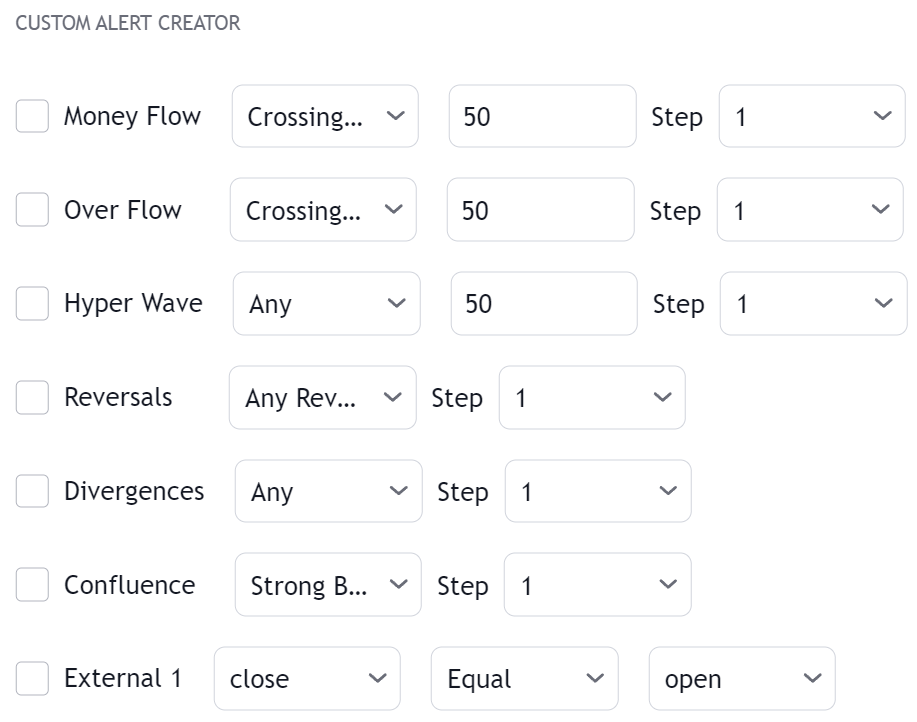
Users wishing to construct more complex alerts using features within the toolkit and/or external indicators can use the Custom Alert Creator.
The custom alert creator allows alerting when various user set conditions are met or when a sequence of conditions is complete.
A user wishing to be alerted when the money flow is bullish (above 50) while the HyperWave is overbought (above 80) could do it as follows:
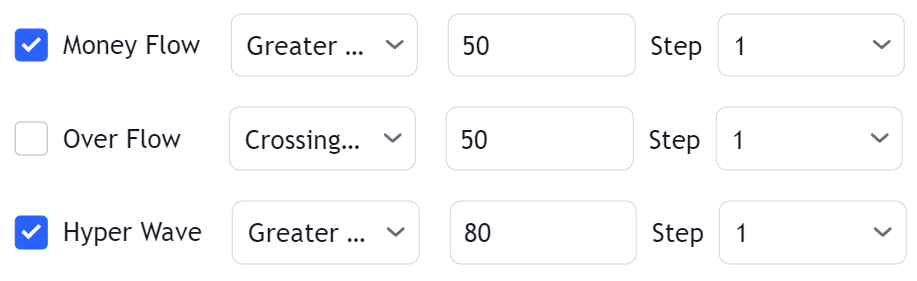
A custom alert can be triggered as an any alert() function call if the setting is selected or as a regular alert when selected in the Tradingview alert creator menu.
Steps
Steps allow creating a sequence of conditions, which when met trigger an alert. When a condition with a step equal to 1 is met the next condition associated with step 2 will be evaluated (if enabled) and so on for higher steps (if any).
Conditions with the same associated step will require for both conditions to be true in order for the condition associated to a higher step (if any) to be evaluated. This allows certain conditions to act as filters.
A user wishing to be alerted when the HyperWave cross under 80 after any bearish reversal signal could do it as follows:
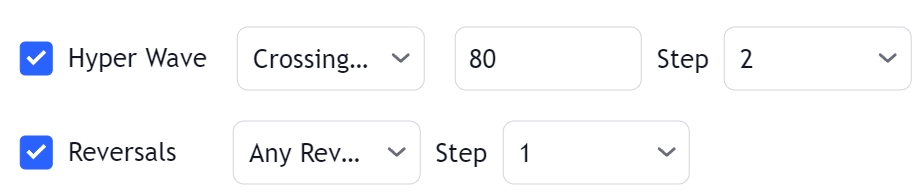
Make sure steps are set such that they form a linear sequence. For example if the lowest step is 2 or if the set steps are only 1 and 3 an error will be returned.
OR Step Operator
The "OR" step operator can be used to get alerted for any additional condition using "OR" as step, in addition to other set custom alert conditions.
Conditions using the "OR" step can be highlighted using a different color, which can be set from the Custom Alert Creator settings.
All Step Operator
The "All" step operator can be used to filter any set "Step" condition, including "OR" and "Invalidate".
This step operator can be useful if all the steps in a sequence needs to obey a specific rule.
If a user has 2 steps set, and requires both of these to occur at a specific time interval such as 9am to 1pm, then we can use a "Session" condition using the "All" step, requiring our step 1 and step 2 to be occur between 9am and 1pm.
Invalidate Step
The "Invalidate" step allows to set a condition as an "invalidation condition". When this condition is triggered while a sequence of conditions is incomplete, the sequence will restart at step 1.
If multiple steps are set as "Invalidate" any of the conditions being true will reset the sequence of conditions, as such not all of them are required to be true for the sequence of conditions to reset.
Example
Let's take an example where we use 2 regular steps and one "Invalidate" step. The alert will trigger when step 2 trigger after step 1 has been triggered.
Step 1
Step 1 condition trigger, we will now evaluate step 2 from now on.
Invalidation Step
Invalidation step condition trigger, we reset the sequence and evaluate step 1 just after.
Invalidation Behaviors
Invalidation behaviors allows adding more restrictions to a sequence of conditions, users can use two different invalidation behaviors described below:
Invalidate On Step 1
The "Invalidate On Step 1" behavior allows to reset an incomplete sequence of conditions when the condition on step 1 trigger. This prevents the first step condition from happening in between other steps of the condition sequence.
This behavior is useful when the first step of our sequence of conditions needs to never be repeated during the sequence.
Example
Let's take an example where we use 3 regular steps.
Step 1
Step 1 condition trigger, we will now evaluate step 2 from now on.
Step 2
Step 2 condition trigger, we will now evaluate step 3 from now on.
Step 1 Trigger
Step 1 condition trigger, we start evaluating step 2 from now.
Invalidate On Any Repeated Step
The "Invalidate On Any Repeated Step" behavior allows to reset an incomplete sequence of conditions when a step is triggered such that it does not respect the set order of conditions.
This behavior is useful when we want a perfectly ordered sequence of conditions to complete, without any step repeating itself.
Example
Let's take an example where we use 3 regular steps.
Step 1
Step 1 condition trigger, we will now evaluate step 2 from now on.
Step 2
Step 2 condition trigger, we will now evaluate step 3 from now on.
Step 1 or 2 Trigger
Step 1 or 2 conditions trigger, we start evaluating step 1 from now.
Maximum Step Interval
Users can determine what is the maximum allowed horizontal distance (in bars) between two steps by enabling the "Maximum Step Interval" setting. This allows restricting steps separated by a large amount of bars.
If the amount of bars since a step exceed the set threshold, then the conditions sequence is reset, and we start evaluating from step 1 again.
Highlight On Chart
When a custom alert condition is set, a visual element is displayed at the bottom of the chart in order to more easily visualize when the custom alert conditions occur (displayed by default). Users can choose the location of this visual element (top, bottom of the oscillator or centered).
Alerts Reference
Pre-Set Alerts
| Alert | Description |
|---|---|
| HyperWave Signal Up | Triggers on the event of an HyperWave signal up |
| HyperWave OS Signal Up | Triggers on the event of an HyperWave oversold signal up |
| HyperWave Signal Down | Triggers on the event of an HyperWave signal down |
| HyperWave OB Signal Down | Triggers on the event of an HyperWave overbought signal down |
| Reversal Up | Triggers on the event of a detected reversal up signal |
| Reversal Up + | Triggers on the event of a detected reversal up + signal |
| Reversal Down | Triggers on the event of a detected reversal down signal |
| Reversal Down + | Triggers on the event of a detected reversal down + signal |
| Bullish Divergence | Triggers on the event of a detected bullish divergence |
| Bearish Divergence | Triggers on the event of a detected bearish divergence |
| Strong Bullish Confluence | Triggers when a strong bullish confluence is detected |
| Weak Bullish Confluence | Triggers when a weak bullish confluence is detected |
| Strong Bearish Confluence | Triggers when a strong bearish confluence is detected |
| Weak Bearish Confluence | Triggers when a weak bearish confluence is detected |
| Bullish Overflow | Triggers when bullish overflow is detected |
| Bearish Overflow | Triggers when bearish overflow is detected |
| Custom Alert Condition | Triggers on the event of a user set custom alert condition being true |
Any alert() Function Call
| Alert | Description | Default |
|---|---|---|
| HWO Signal Up | Triggers on the event of an HyperWave signal up | |
| Oversold | Triggers on the event of an HyperWave oversold signal up | |
| HWO Signal Down | Triggers on the event of an HyperWave signal down | |
| Overbought | Triggers on the event of an HyperWave overbought signal down | |
| Reversal Up | Triggers on the event of a detected reversal up signal | |
| + | Triggers on the event of a detected reversal up + signal | |
| Reversal Down | Triggers on the event of a detected reversal down signal | |
| + | Triggers on the event of a detected reversal down + signal | |
| Bullish Overflow | Triggers when bullish overflow is detected | |
| Bearish Overflow | Triggers when bearish overflow is detected | |
| Bullish Divergence | Triggers on the event of a detected bullish divergence | |
| Bearish Divergence | Triggers on the event of a detected bearish divergence | |
| Bullish Confluence | Triggers when a weak bullish confluence is detected | |
| Strong | Triggers when a strong bullish confluence is detected | |
| Bearish Confluence | Triggers when a weak bearish confluence is detected | |
| Strong | Triggers when a strong bearish confluence is detected | |
| Custom Alert Creator | Triggers on the event of a user set custom alert condition being true |