TradingView Alerts
In this page, we show you the specifics of how to set up any alert on TradingView in general. If you want to learn how to set up specific alerts on our exclusive tools specifically, you can see the following video.
On the TradingView platform, alerts can be created to trigger for any user set condition, such as crosses between two indicators, price entering or exiting a channel...etc. Users can be notified when the condition is trigerred via phone notifications, emails, SMS, and more through webhooks.
How To Create An Alert
To create an alert you can:
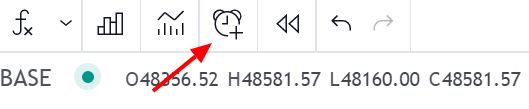
- Click on the alert button at the top of your chart.
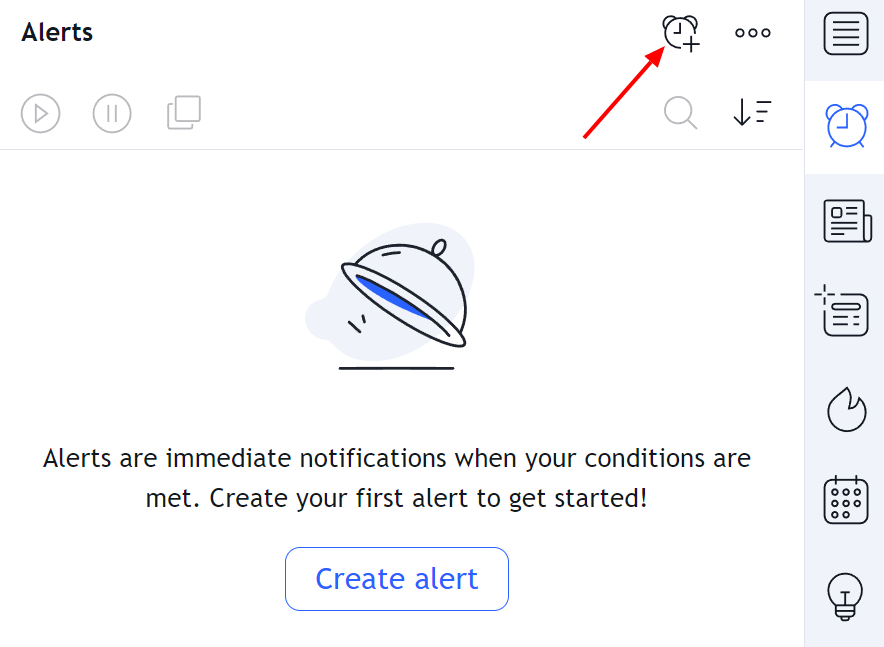
- From the alert manager
- Using hotkeys
ALT + A(Windows) or⌥ + A(Mac)
Trigger Conditions
Users can select the conditions used to trigger an alert in the condition menu, selecting the indicators and a set of rules used to trigger an alert. The second drop down menu controls the specific alert trigger conditions, while the other drop down controls the elements/plots to be used for conditions.
Indicators return plots, which are visual elements that can be used to set the alert condition. Plots are used to visualize series of values, conditions, etc. Note that indicators can return multiple plots.
Available conditions to set custom alerts are explained below:
Crossing/Crossing Up/Crossing Down
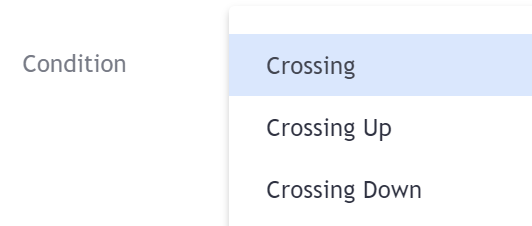
Crossing conditions are commonly used and allow users to be alerted when two elements cross each other.
Three crossing conditions are available, Crossing, Crossing Up, Crossing Down.
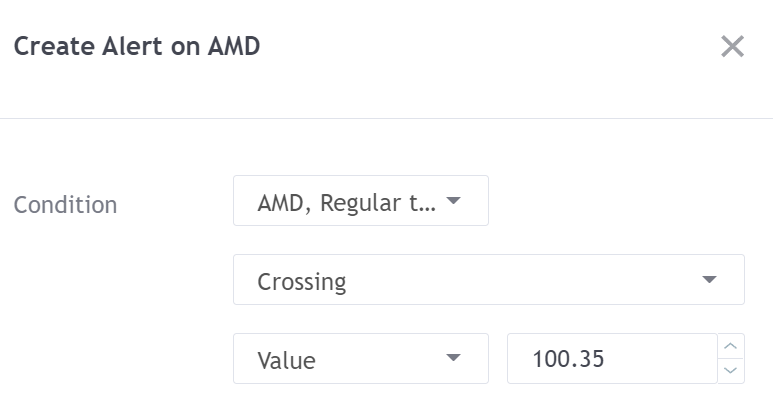
Crossing will alert on any crosses between two selected plots/values.
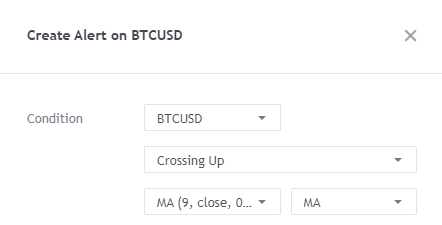
Crossing Up will alert only when the first selected element crosses over the second one.
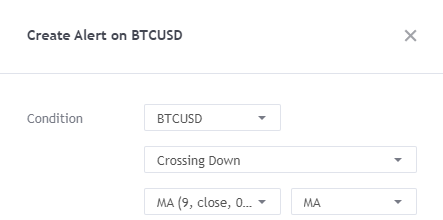
Crossing Down will alert only when the first selected element crosses over the second one.
Entering/Exiting Channel
Entering/Exiting Channels conditions will trigger when any selected element enter or exit user selected upper/lower bounds.
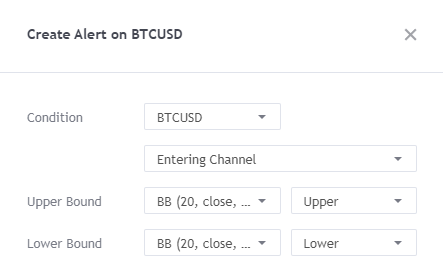
The Entering Channel condition will trigger when the element in the first drop-down menu cross-under the selected upper bound or cross-over the selected lower bound.
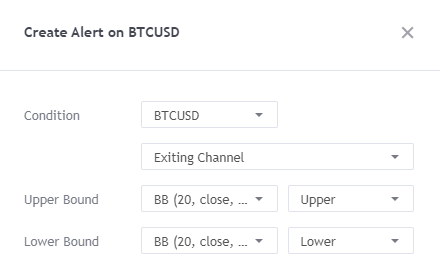
The Exiting Channel condition will trigger when the element in the first drop-down menu cross-over the selected upper bound or cross-under the selected lower bound.
Outside/Inside Channel
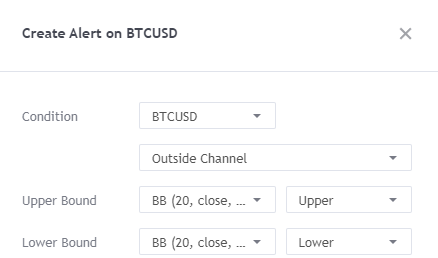
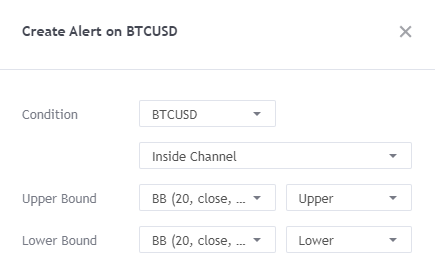
Outside/Inside Channels conditions will trigger when any selected element is outside or within selected upper/lower bounds.
Greater/Less Than
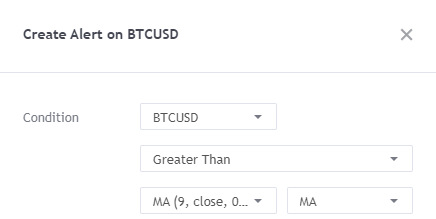
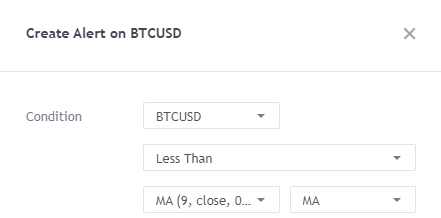
The Greater Than and Less Than conditions will trigger when a selected element is greater or less than a selected element or value.
How To Use Placeholders
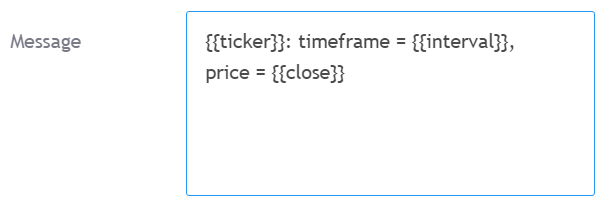
Placeholders allow for the value of a variable to be returned in an alert message. This variable can be the closing price of a symbol ({{close}}), the time frame of the chart the alert is created on ({{interval}}), and even the value of an indicator. This is done using the {{plot("Name")}} placeholder, where "Name" is the name of the plot you want the value to be returned in the alert message. Note that only the first 22 plots in an indicator can be used in placeholders.
Note that plot("Name") must be part of the indicator selected in the alert condition.
Warning Message
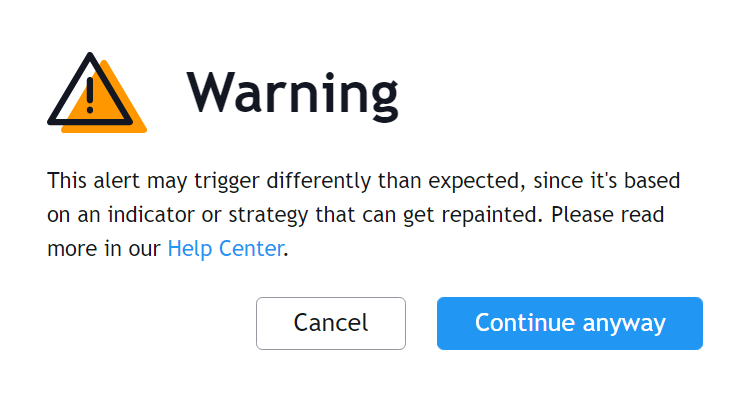
When you create an alert using certain indicators such as the Signals & Overlays® indicator, you might see a warning message, this is caused by internal Pine Script® functions used in the script that may have a repainting behavior when set in a specific way.
The alerts provided by the LuxAlgo indicators do not repaint and as such, you can click on continue anyway.
Managing Alerts
The alerts manager menu allows you to manage the alerts you have currently set. From there you can create, remove, pause, reactivate, clone, search, sort and edit your alerts. To access the alert manager menu click on the alerts icon represented by an alarm symbol at the top left of the chart.
If you want to remove all your current alerts click on the three horizontal dots at the right of the "add alert" icon, then select "remove all".
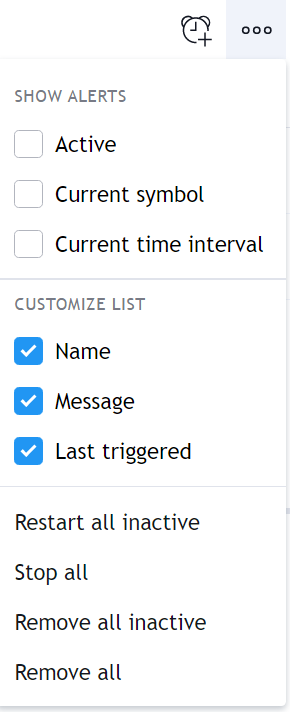
For more information on how to manage alerts go here.
Updating Alerts
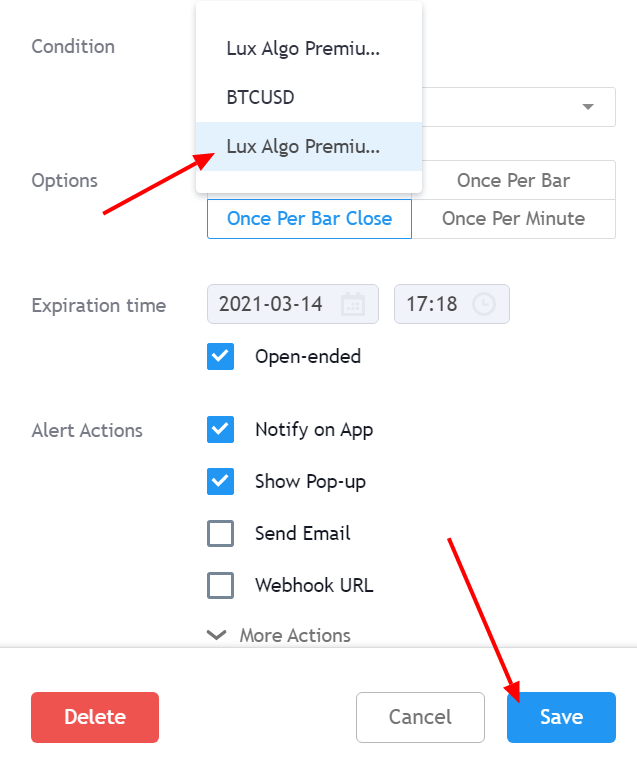
It is important to note that if one of the indicator settings is changed after the alert is created, then the alert will be triggered using the old settings. In order to update an alert go to the alert manager and click on edit.
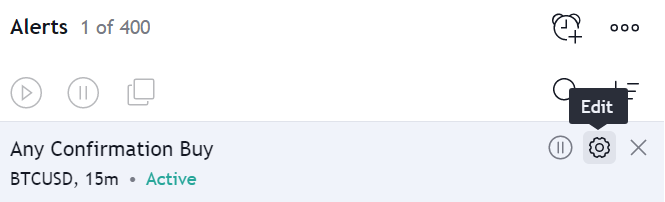
In the first drop-down menu of the Condition section, select the second indicator with the same name as the one first used to create the alert you want to update and save the alert.