Overview
Understand workspaces, tabs, and chart layouts, then save, open, and share your setups.
A workspace is a named, saved setup in Vela, our next-generation charting platform. It keeps your charts, symbols, timeframes, drawings, indicators, and panel setup. Tabs let you move between charts and views in the same window, including charts from different saved workspaces.
Workspaces, tabs, and layouts
| Use | When you want to |
|---|---|
| A workspace | Save a named setup for a routine, such as Crypto or Equities, and return to it later. Create one from the workspace menu in the chart topbar. |
| A chart tab | Keep another chart setup open in the same window. Use +, then New chart… for a fresh chart, or From workspace to open a saved workspace's chart. |
| A chart layout | See several charts at once inside a single chart tab. Choose a grid from the chart topbar's Layout control. |
| A view tab | Open Journal, Watchlist, or Portfolio beside your chart tabs. You can also split a chart and a view across the screen. |
For example, start in a workspace named Crypto and add a new ETH chart tab. That tab saves with Crypto. To keep an existing Equities setup open too, choose +, then From workspace, then Equities. Its chart opens in another tab, and edits there save back to Equities. Clicking between those tabs changes what you see; each chart still saves to the workspace it belongs to.
Your setup autosaves when you are signed in. The workspace in the first tab also remembers the tab arrangement, including tabs that open other workspaces. Closing one of those tabs leaves its saved workspace available in the workspace menu.
Journal trades and notes belong to your account. Opening Journal in another workspace shows the same account data. Header widgets are saved in your browser and carry across workspaces.
Scripts Quant creates and edits belong to the workspace until removed. A single chat can manage multiple scripts, and there is no separate commit or Add to workspace step. See Making indicators for the script workflow.
Save and switch
Open the Workspaces dialog
Click the workspace name or Workspaces in the chart topbar. The menu names the workspace shown by that chart. Use Show all to open the full list.
Create or switch
Choose a workspace from the list. On desktop, it opens in the chart tab you're viewing, while your other tabs stay open. If that workspace is already open in a tab, Vela brings that tab forward. To keep the current chart open too, use +, then From workspace instead.
Choose New workspace to create a separate saved setup. In the full list, use the footer; if you typed a name in the search box, that name is used for the new workspace. New accounts start with the workspace picked from the template gallery at sign-up.
Keep working
Changes to a chart save to its workspace. Switching the first tab to another workspace also brings in that workspace's saved chart tabs, keeping your other open tabs available. See Save and restore tabs for what each tab saves and which settings are shared.
Workspace autosave is separate from the Pine editor's Save action, which keeps a reusable script in My Scripts. The editor's previous versions are temporary session history, not a permanent workspace backup.
The number of saved workspaces depends on your plan: Free 10, Essential 20, Premium 50, Ultimate 100, AI Ultra 200.
Workspace tabs
On desktop, the tab strip beside Quant holds your open charts and views. Drag tabs to reorder them, give chart tabs names, or split a chart beside a view. The first chart tab stays first and cannot be closed. See Workspace tabs for opening saved workspaces in tabs, saving, header widgets, and keyboard shortcuts.
Share
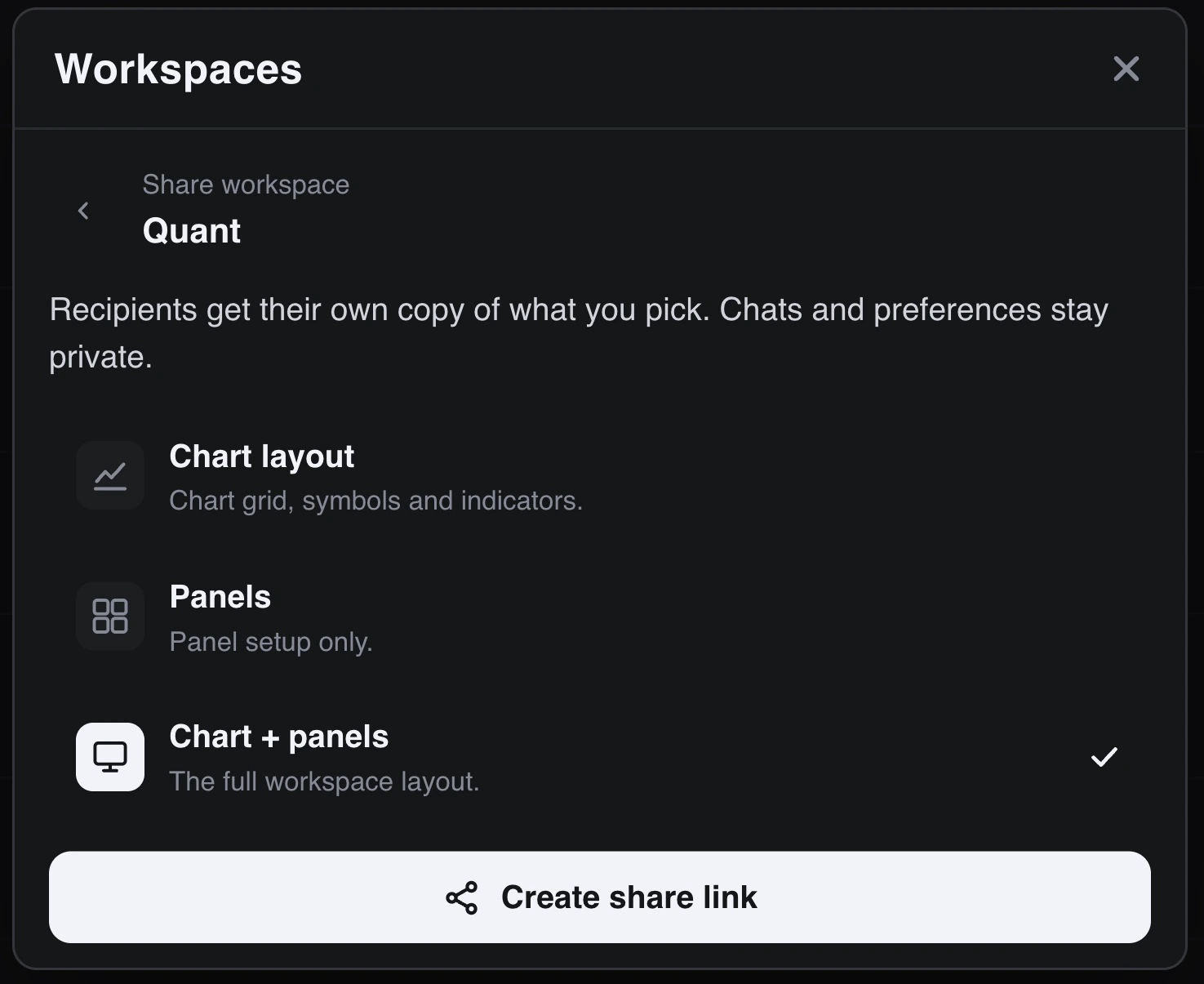
From the Workspaces dialog you can share a workspace at three scopes:
- Chart layout: the charts with their drawings and indicators
- Panels: the panel setup only
- Chart + panels: both
Sharing is copy-based, not collaborative: anyone with the link gets their own independent copy, and edits on either side don't affect the other. Your chats and preferences stay private; they are never part of the share.
Shared links open on vela.luxalgo.com and require the recipient to sign in before their copy is created.