
Pine editor
Inspect and edit code, save reusable scripts, and switch between versions in the current session.
The Pine editor is where you inspect scripts generated by Quant, write your own Pine Script®, or paste code you already have. Open it from the Pine editor button in the right-hand panel rail.
Open and run a script
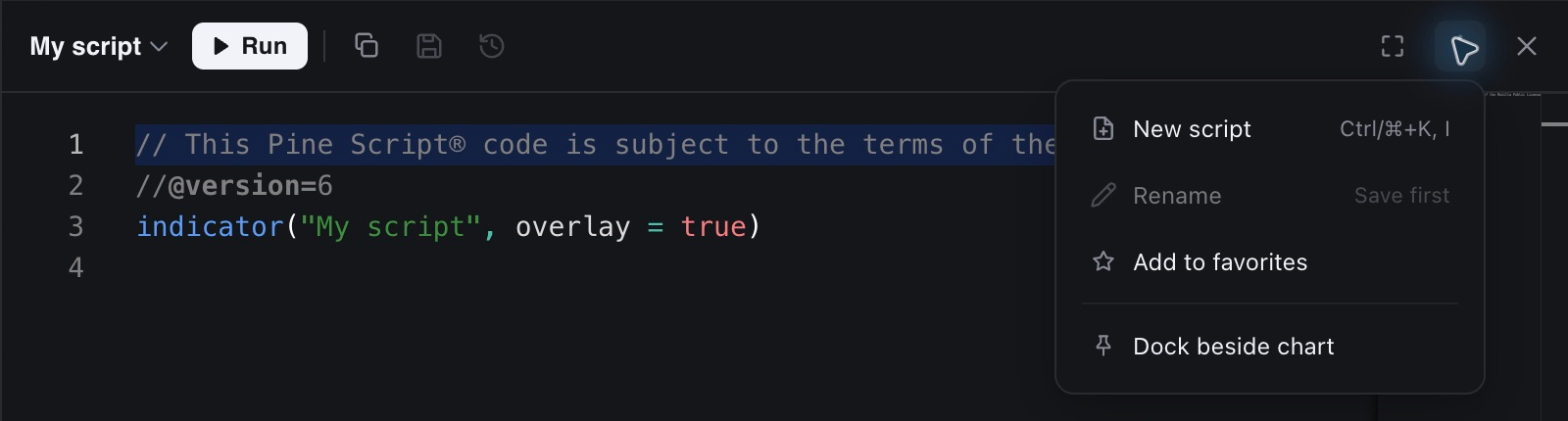
Click the script name at the top of the editor to open a recent script. To begin another, choose More actions → New script. You can work with indicators and strategies; running a strategy also makes its backtest results available.
Review or edit the code, then click Run to execute it on the active chart. Sign in to run scripts. In a multi-chart workspace, click the intended chart before running.
After the first Run, or after you choose Edit code on an indicator's legend row, the editor is linked to that indicator and Run becomes Update. Update replaces the indicator's code in place: its legend row, pane, visibility, and settings stay. Update is greyed out while the editor matches the indicator's code. If the new code fails, the previous version keeps running and the error shows in the code and in the logs. To add a separate copy instead, choose New script; the next Run adds a new indicator.
Save a script
Use Save in the editor toolbar, or press Ctrl+S on Windows / ⌘S on Mac while editing. Sign in to keep saved scripts in your account. Scripts you save appear beside Quant-generated scripts in Indicators → My Scripts.
The first save opens a Save script dialog where you can confirm the script name. To reopen its saved source later, find the script in My Scripts and choose Open code.
These actions serve different purposes:
| Action | What it keeps or changes |
|---|---|
| Run / Update | Run adds the script to the active chart; Update replaces the linked indicator's code in place. |
| Save | Keeps a reusable script that you can find in My Scripts. |
| Add to favorites | Stars the script so it is easy to find in Favorites. |
| Workspace autosave | Keeps your signed-in chart workspace setup. |
Use More actions → Rename to rename a saved script. If Rename shows Save first, save the script before renaming it. Copy the code copies the source for use elsewhere or as a separate backup.
If saving fails
First copy the code somewhere safe. Saved scripts can be up to 200,000 characters long. There is no line limit, but every character counts, including comments, spaces, and line breaks. If a long script won't save, remove unused or commented-out code, or move part of the logic into a separate script.
Check that you are signed in, then try the toolbar’s Save action if the keyboard shortcut did not work. If the error continues, contact support with the exact message and whether it happens with this script or with other scripts too.
A failed save does not mean the shortcut is unsupported. Do not close or reload the page until you have preserved any code you need.
Version history
Open Version history (this session) in the editor toolbar to switch between the versions available during the current session.
Selecting an older version loads its code into the editor. Click Update to apply that version to the chart. Save it if you want it to become the script’s saved version.
Version history is local to the current browser session. Reloading the page, leaving the workspace, or ending the session can clear previous versions. Save scripts you want to keep, and copy any older version you need before leaving. Saved scripts and temporary version history are separate.
The version picker switches versions; it does not show a side-by-side code diff.
Logs and errors
The Logs area at the bottom of the editor shows script messages. Use its collapse control when you need more room for code, and reopen it when investigating execution problems.
If a script fails, inspect the error and the code before running again. Fix with Quant can help repair syntax or runtime errors on supported plans.
Position the editor
Use More actions to change the editor’s docking position, or Maximize for more editing space. Close the panel when you want the chart space back, then reopen it from the right-hand rail.
For editor key commands, see Shortcuts.