
Trading with Quant
Quant reads your paper account, proposes orders and exits you approve, and checks strategies against prop firm rules.
With Paper Trading, Quant, our coding agent, can work with your paper account: read it, propose orders and exits for you to approve, and check a backtested strategy against prop firm rules. Ask in your own words, in the same chat you use for scripts and chart questions.
Quant trades your Paper Trading by LuxAlgo accounts only. Orders are simulated and never reach a broker. Quant never places an order on its own: every order is a card you approve, unless you turn on auto-approve for a while.
Ask about your account
Quant reads your paper accounts: balances, open positions with their open P&L, working orders (and who placed them, and why), today's realized P&L, your risk settings, and your journal for today and the last 7 days. Ask things like:
- "What's on my paper account right now?"
- "How am I doing today?"
- "Which of my working orders did you place, and why?"
While you chat, Quant also notes what happens to the orders it placed: a fill, a stop or target hit, a partial fill, an order that expired or was canceled. These notices fade after ten seconds; you can also dismiss one with ×. The trading panel keeps the activity record.
Propose an order
Ask for the trade you want, and Quant turns it into an order card for you to check. It proposes only the trade you asked for, and gives no personal advice.
- Order type: market, limit or stop.
- Size: in units, by dollars at risk, by % of equity, or in R, where 1R is 1% of your equity.
- Exits: a stop loss and one or more targets, as prices, points or R multiples, and an optional trailing stop.
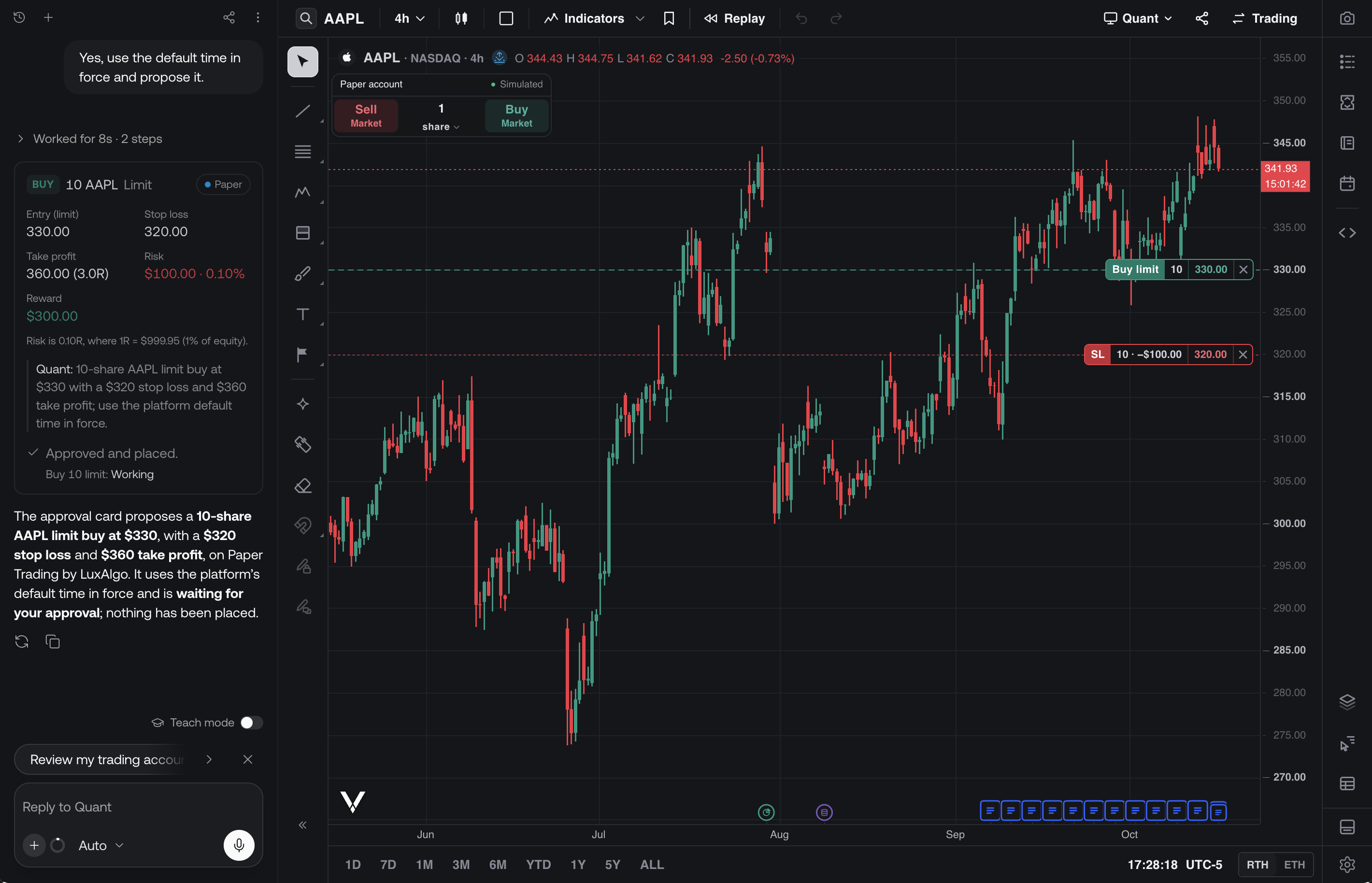
For example: "On Paper Trading by LuxAlgo, buy 10 AAPL at a 330 limit with a stop at 320 and a target at 360."
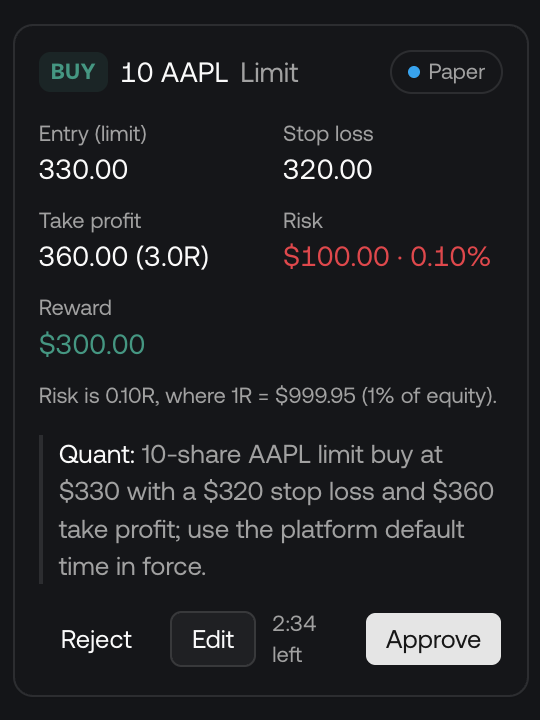
The order card
The card spells the order out before anything happens:
- The side, size, symbol and order type, with a Paper tag.
- The entry, stop loss and take profit, and the Risk and Reward in dollars, with the risk as a share of your equity and the target in R.
- Quant: a one-sentence reason, which is saved on the order and shown in your order history.
- Warnings where they apply, such as an order with no stop loss, or one that risks more than 2% of the account on one trade.
Then choose:
| Button | What happens |
|---|---|
| Approve | The order is placed on your paper account, after your risk limits and kill switch are checked again |
| Edit | Change the size, entry, stop, target or trail. Your edit becomes a new card to approve |
| Reject | Nothing is placed |
A card stays open for 3 minutes, with a countdown, and can be approved once. After that it expires and nothing is placed; ask Quant to propose it again. A market order is refused if the price moves more than a quarter of the stop distance before you approve.
Manage exits and orders
On a position you hold, Quant can propose a new set of exits: close all or part of it now, move or add a stop, add a trailing stop or a take profit, or scale out across 2 to 5 targets ("half at 1R and the rest at 3R"). The card shows which exits are new, which are kept, and which are replaced. Quant can also propose canceling up to 20 working orders at once.
Like new orders, exits and cancels are cards you approve. Quant needs a current market price to propose stops and targets. If the price has moved past a proposed stop or target by the time you approve, the card is refused: nothing is placed and your existing exits stay in place. Ask Quant for a fresh stop or target, or explicitly ask to close the position.
Auto-approve paper orders
When you trust a routine, you can let Quant's paper orders go through without the card for a while. Choose Auto-approve paper on an order card, pick how long (30 minutes, 1 hour, 2 hours or 4 hours), and enter your authenticator code.
- Auto-approve needs two-factor authentication on your account.
- It covers paper orders only, and every risk limit still applies.
- A line above the prompt shows the time left, with Turn off.
- Orders you edited, and orders in a chat with something you didn't type, such as an attached file, still need your approval.
- So do orders in a chat a watch has woken.
Prop firm challenges
Quant can search our directory of prop firm challenges and show the ones that fit what you ask for, with each challenge's profit target, daily loss limit, maximum drawdown, whether automated trading is allowed, and its price. Links open the firm's site; partner links say that LuxAlgo may earn from them.
With a strategy backtested on the open chart, Quant can also check it against those challenges. It replays your strategy's trades through each challenge's rules at different risk levels and reports an estimated pass rate, the risk per trade that works best, and the rule it fails most often. The strategy needs at least 10 closed trades.
The result is an estimate from past trades, not a promise of future results. Quant never buys a challenge for you.
To see every challenge at once, open the Prop Firms tab in the backtest viewer: see Prop Firms.
Requirements
- A signed-in account with Paper Trading.
- Quant's trading works on your LuxAlgo paper accounts only.
- Every turn counts like any other message to Quant.
Working the chart
Quant sets up the chart from a prompt, looks at it to check its work, reads exact prices, plots, and trades, measures how often a setup happened, and tries new script settings without new code.
Watch mode
Ask Quant to watch the chart for a condition. When it hits, Quant takes a turn in the chat and explains what happened.