
Docked view
Keep the symbols you follow beside the chart, with live quotes, symbol details, and one click to load them.
The watchlist keeps the symbols you follow one click away from the chart. It lives in Panels, independent of any single chart, and saves and shares with the workspace.
The docked panel is the everyday surface: a grouped list on top and the details of the selected symbol underneath. Advanced view opens the full watchlist over the terminal, with performance, relationships, research, and exposure.
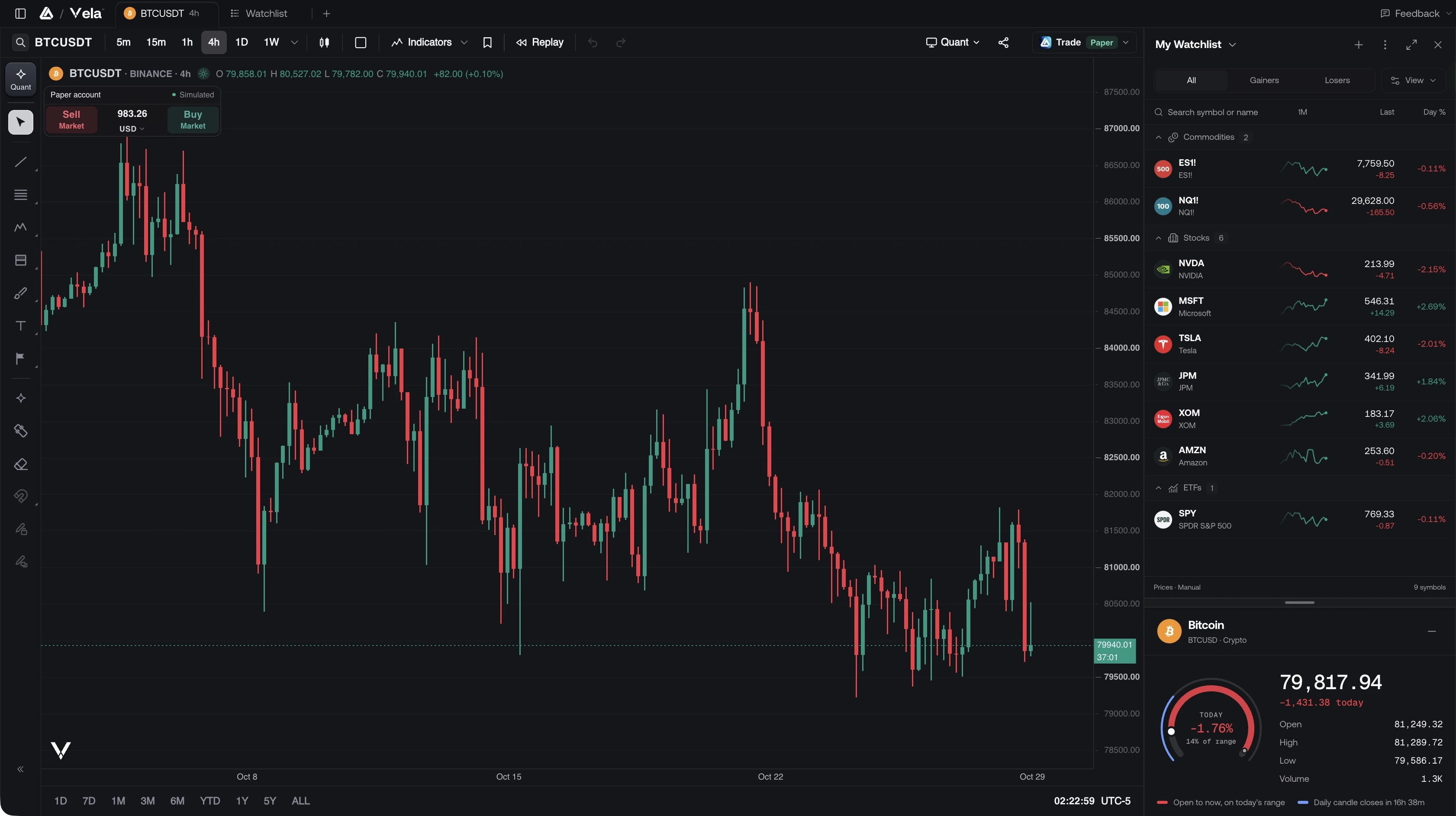
Open the watchlist
Click Watchlist in the right-hand panel rail.
Build your list
Click + (Add symbol) in the panel header to open the same Symbol Search as the chart. Hover a row and click Remove to drop it. Keep separate lists for separate routines: one per market, strategy, or session.
Load a symbol
Click a row and it loads on the active chart. In a multi-chart layout, click the target cell first. The watchlist always feeds the active cell. The symbol on the chart is highlighted in the list, and its details open under it.
Lists
Signed in, the name in the header is a picker. Switch lists from there, or choose New watchlist. Under Suggested, ready-made lists such as Crypto majors and US tech leaders can be added with Add. The list menu Renames or Deletes the list you are on. Deleting removes the symbols in it.
Without an account you get one local list. Sign in to keep multiple lists and sync them.
The list you have open is saved with the workspace, so each setup can sit on a different watchlist.
Import watchlists
Sign in, open Watchlist, and select the list name in its header. Choose Import lists to open Bring your setup to Vela on the watchlists step.
- In TradingView, open a list's Advanced view and choose Download list as TXT. Add or drop the
.txtfile into Vela. You can bring up to 20 lists at a time, one file per list. - If downloads are unavailable, use Or paste symbols, then Add as a list. A TradingView screener's Export screen results
.csvfile also works: Vela reads its symbols to make a list, not its screener settings or data columns. - Review Lists to import. Edit a list's name or remove it from the import before continuing. Vela keeps the list's sections and order.
- Check the symbols ready to import, unavailable markets, any matches to a nearby market, and symbols left out by your plan's limits. Spreads and formulas cannot become watchlist rows; each row is one market.
- Choose Import list, or Import [number] lists when bringing several. The imported list becomes available in the picker.
The import creates new lists and does not replace your existing ones. Free's 10-symbol limit, paid plans' 500-symbol limit, and futures access still apply. The review shows what stays behind so you can decide before importing.
For chart layouts, scripts, and trade history as well, see Bring your setup.
Search and filter
Search symbols or companies at the top of the panel filters the list you have open by ticker or company name. Add from all markets also shows matching markets that are not on the list; use the + beside a result to add it. Clear the field to see the whole list again.
In the chart's Symbol Search, the + on a result adds it to the watchlist you last selected without changing the chart or closing search. A check mark means it is already on the list. Sign in to use quick add; your plan's list limit still applies.
To bring lists from another platform, use Import lists.
All, Gainers, and Losers narrow the list to the day's direction. When nothing matches, Clear filters resets both the search and the filter.
Groups, sorting, and columns
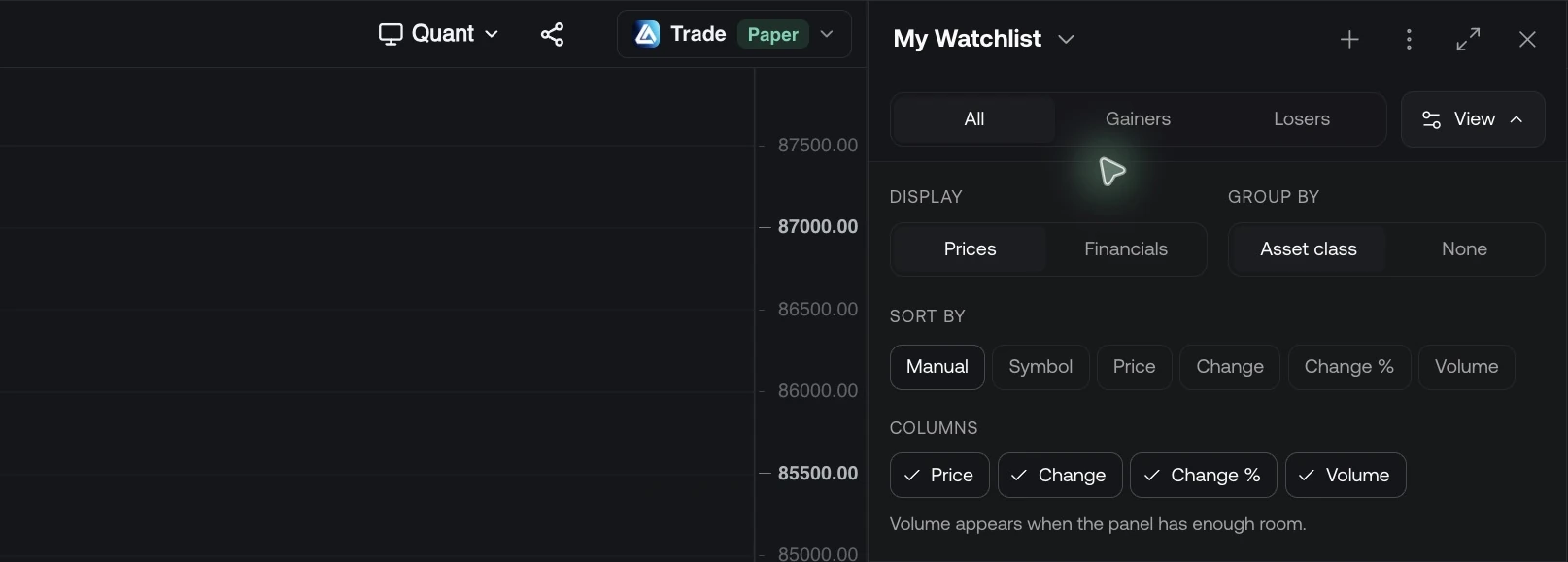
View opens Watchlist view:
- Display: Prices shows market data. Financials swaps the columns to company data such as market cap, P/E, and sector, where the symbol has it.
- Sort by: Manual order, or a column such as Symbol, Last price, Change, Change %, or Session volume. The arrow beside it flips the direction.
- Group by: Asset class groups the rows under Crypto, Stocks, Forex, Commodities, and so on, each with a count. Click a group header to collapse or expand it. None shows one flat list.
- Columns: Last price, Change, Change %, and Session volume. Volume appears only when the panel has enough room for it.
The footer shows the active view, such as Prices · Manual, and how many symbols are on the list.
With Manual order, drag a row to set your own order. That order is kept.
Symbol details
The area under the list follows the selected symbol. It shows the name and exchange, then:
- Today: a dial of the day's move, with the price, its change today, and the session's open, high, low and volume. The dial's arc shows the move from the open to now on today's range, and a note says when the market is closed, in pre-market or after hours, and when it next opens.
- Events: cards for the symbol's upcoming and recent events, such as earnings with the expected EPS and economic releases with the actual against the forecast. Page through them with the arrows. Sign in to see company events.
- Headlines: the latest news for the symbol.
- Technical reading: a summary of the chart's completed candles on the chart's timeframe: trend structure against the moving averages, RSI 14, MACD 12 · 26 · 9, ATR 14, and an overall signal balance. It describes recent history, not a forecast.
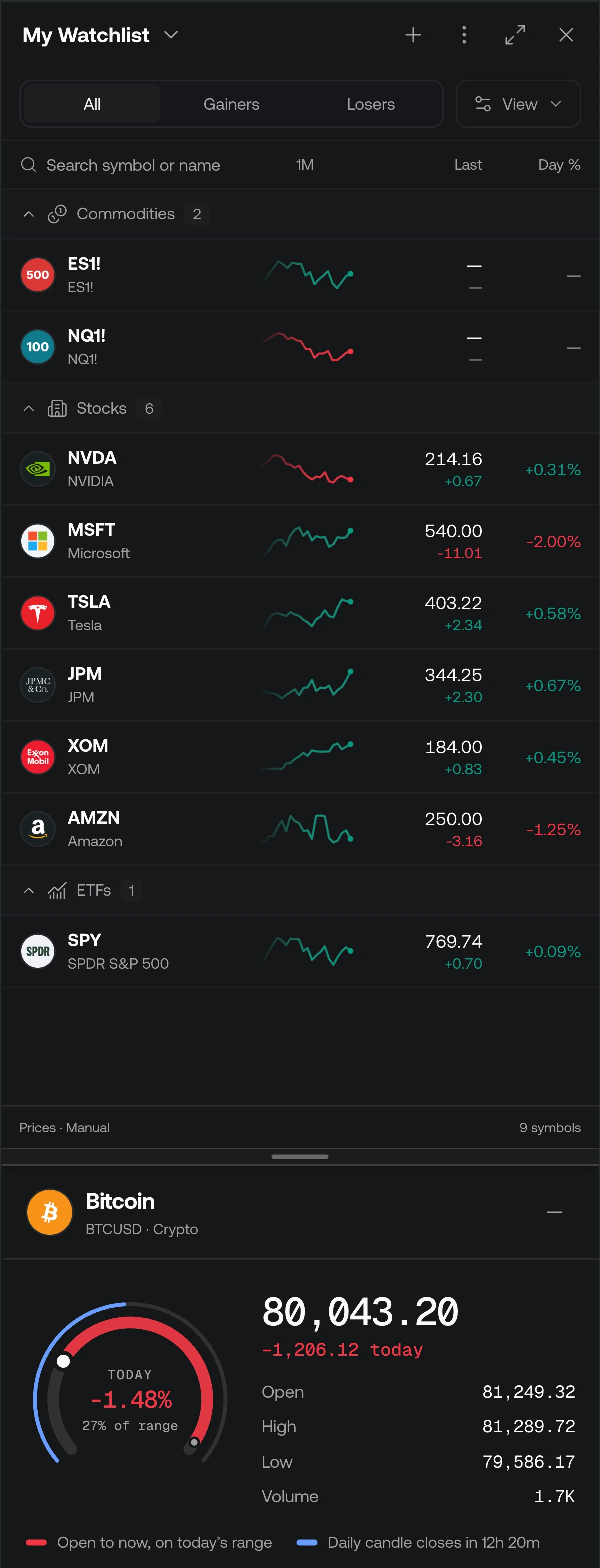
The details open on the symbol's header and its Today dial, so the list keeps most of the room. Drag the handle between the list and the details to give either more room; where you leave it is remembered. Minimize symbol details (the – in the details header) folds the area away; Show symbol details brings it back.
Advanced view
Click Open advanced view (the expand arrows) in the panel header, or drag the panel's edge wide and it expands into Advanced view on its own. On desktop with workspace tabs, this opens the Watchlist tab; you can also open it from the tabs' + panel and split it beside a chart. Return to chart closes that view and puts the docked panel back.
Advanced view
Overview, Relationships, Symbols, Research, and Exposure for the whole list.
Every plan has unlimited watchlists. Free supports up to 10 symbols per list; Essential, Premium, Ultimate, and AI Ultra support up to 500 symbols per list.