
Entry Rules
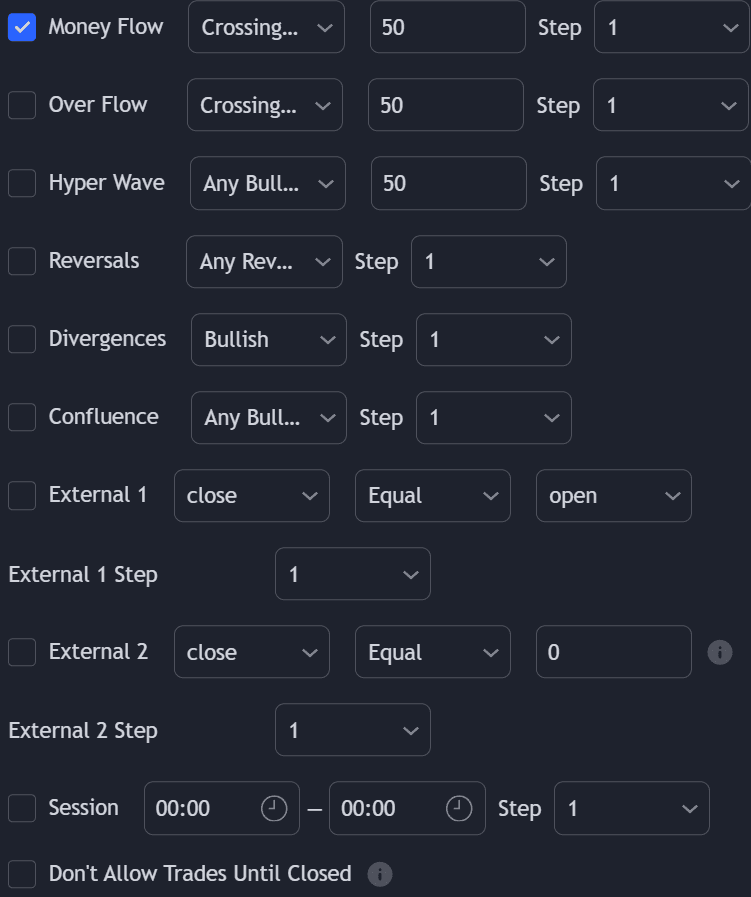
Backtester (OSC) allows users to set their own long/short entry rules from features of the Oscillator Matrix® as well as external indicators.
Entry rules can be created separately for both long and short entries, and can be set using up to 8 different user set conditions. Each can be enabled by toggling them on using the toggle input on the left of each condition, if the enabled conditions are valid, the strategy will open a corresponding market order.
Oscillator Matrix® Conditions
Conditions for 6 features of the Oscillator Matrix® are included. These include:
- Money Flow conditions
- OverFlow conditions
- HyperWave conditions
- Reversal conditions
- Divergences conditions
- Confluence conditions
The first dropdown determines the specific condition used for that feature, these can include generic conditional operators such as Greater Than or Crossing, or conditions proper to certain features such as Any Bullish in the HyperWave conditions.
The second input setting allows the user to enter a numerical values, which is used when Greater Than, Lower Than, Equal, Crossing Over, Crossing Under, or Crossing are used.
For example, if the user wants to go Long when the HyperWave oscillator crosses over 80, the following settings would be used:

External Conditions
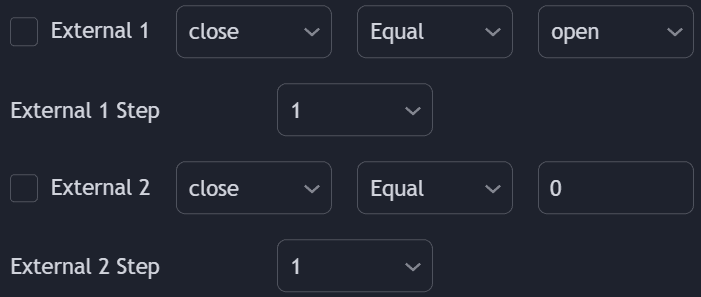
Users can use the output of external indicators on the chart as input to set entry conditions.
The second dropdown of external condition settings determines which conditional operator to use on both external outputs. These include:
- Greater Than
- Lower Than
- Equal
- Crossing Over
- Crossing Under
- Crossing
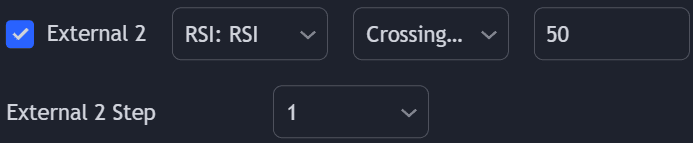
The third external condition works similarly, but instead of comparing two external outputs, the condition will compare an external output specified in the condition first dropdown with a user set value in the third dropdown using a conditional operator set on the second dropdown. This last condition is particularly useful for oscillators.
Here is an example of the third external condition being set for an RSI crossing over 50.
Using Conditions Together
More complex entry rules can be created by using multiple conditions together, this is done thanks to the Step dropdown setting on the right of each condition (below each condition for conditions 4 and 5).
The Step setting is directly related to the Step & Match algorithm and work in two ways:
- When two or more conditions have the same step number, both conditions are evaluated. Used to test matching conditions.
- When two or more conditions have different step numbers, each conditions will be evaluated in order, testing for the first step and switching to the next step once the previous one is true. When the final step is true, the strategy will open a market order. Used to create a sequence of conditions.
This operation is complementary, as you can create a sequence of conditions with one step consisting of two or more matching conditions as long as they have the same step number.
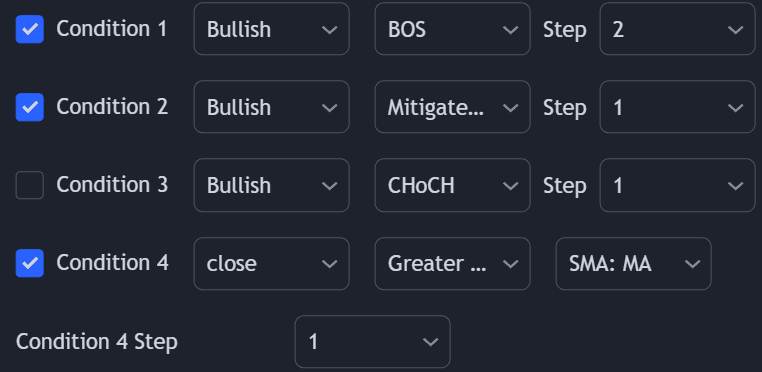
A user wanting to go long when a bullish divergence occurs after any bullish reversal while money flow was bullish (over 50) could do it as follows:
Invalidate Step
The "Invalidate" step allows setting a condition as an "invalidation condition". When this condition is triggered while a sequence of conditions is incomplete, the sequence will restart at step 1.
If multiple steps are set as "Invalidate" any of the conditions being true will reset the sequence of conditions, as such not all of them are required to be true for the sequence of conditions to reset.
Example
Let's take an example where we use 2 regular steps and one "Invalidate" step. The position will be opened when step 2 trigger after step 1 has been triggered.
Step 1
Step 1 condition trigger, we will now evaluate step 2 from now on.
Invalidation Step
Invalidation step condition trigger, we reset the sequence and evaluate step 1 just after.
Invalidation Behaviors
Invalidation behaviors allow adding more restrictions to a sequence of conditions; users can use two different invalidation behaviors described below:
Invalidate On Step 1
The "Invalidate On Step 1" behavior allows resetting an incomplete sequence of conditions when the condition on step 1 triggers. This prevents the first step condition from happening in between other steps of the condition sequence.
This behavior is useful when the first step of our sequence of conditions needs to never be repeated during the sequence.
Example
Let's take an example where we use 3 regular steps.
Step 1
Step 1 condition trigger, we will now evaluate step 2 from now on.
Step 2
Step 2 condition trigger, we will now evaluate step 3 from now on.
Step 1 Trigger
Step 1 condition trigger, we start evaluating step 2 from now.
Invalidate On Any Repeated Step
The "Invalidate On Any Repeated Step" behavior allows to reset an incomplete sequence of conditions when a step is triggered such that it does not respect the set order of conditions.
This behavior is useful when we want a perfectly ordered sequence of conditions to complete, without any step repeating itself.
Example
Let's take an example where we use 3 regular steps.
Step 1
Step 1 condition trigger, we will now evaluate step 2 from now on.
Step 2
Step 2 condition trigger, we will now evaluate step 3 from now on.
Step 1 or 2 Trigger
Step 1 or 2 conditions trigger, we start evaluating step 1 from now.
Limit / Stop Orders
Limit, stop, and stop-limit orders provide better control over the price at which a trade is executed.
These can be enabled for long and short positions respectively.
Limit Orders
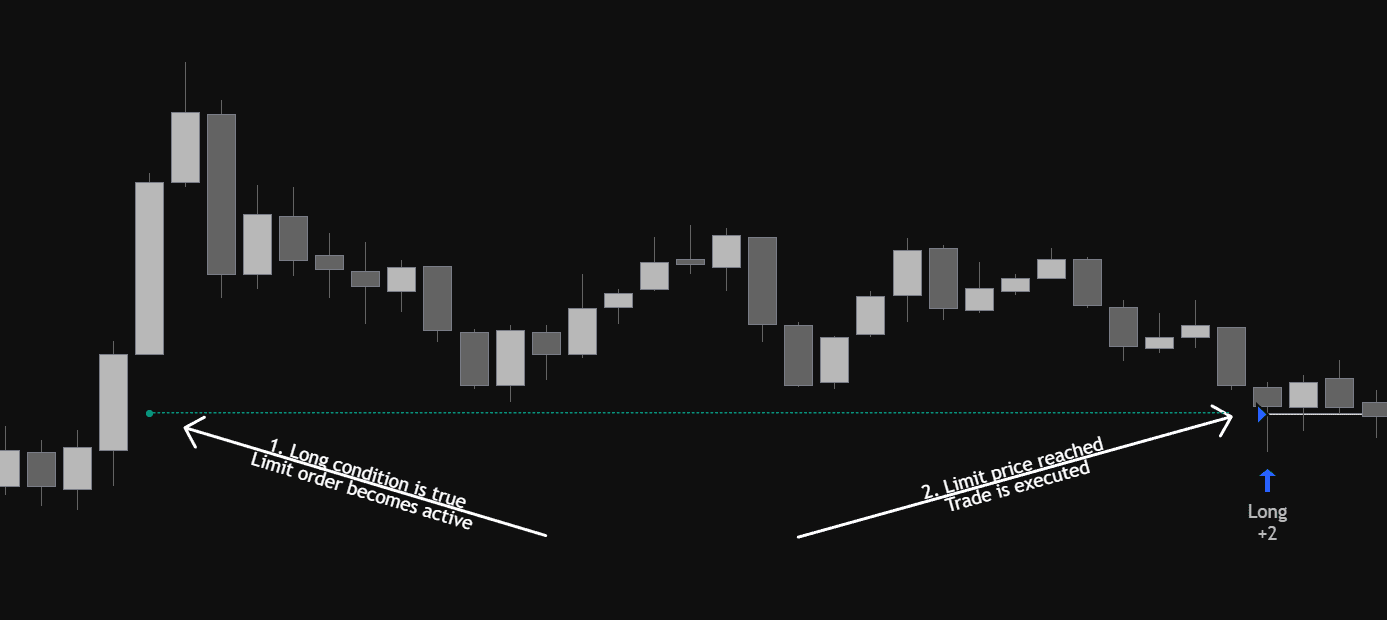
Limit orders execute at a specified price or better. For long positions, a limit order is generally placed below the current market price; for short positions, it is placed higher.
Limit orders can be enabled by toggling the "Long Limit Value" setting.
Limit orders are represented by a dotted line.
A dot is displayed to indicate when a long condition is true, thus updating the limit order price.
Stop Orders
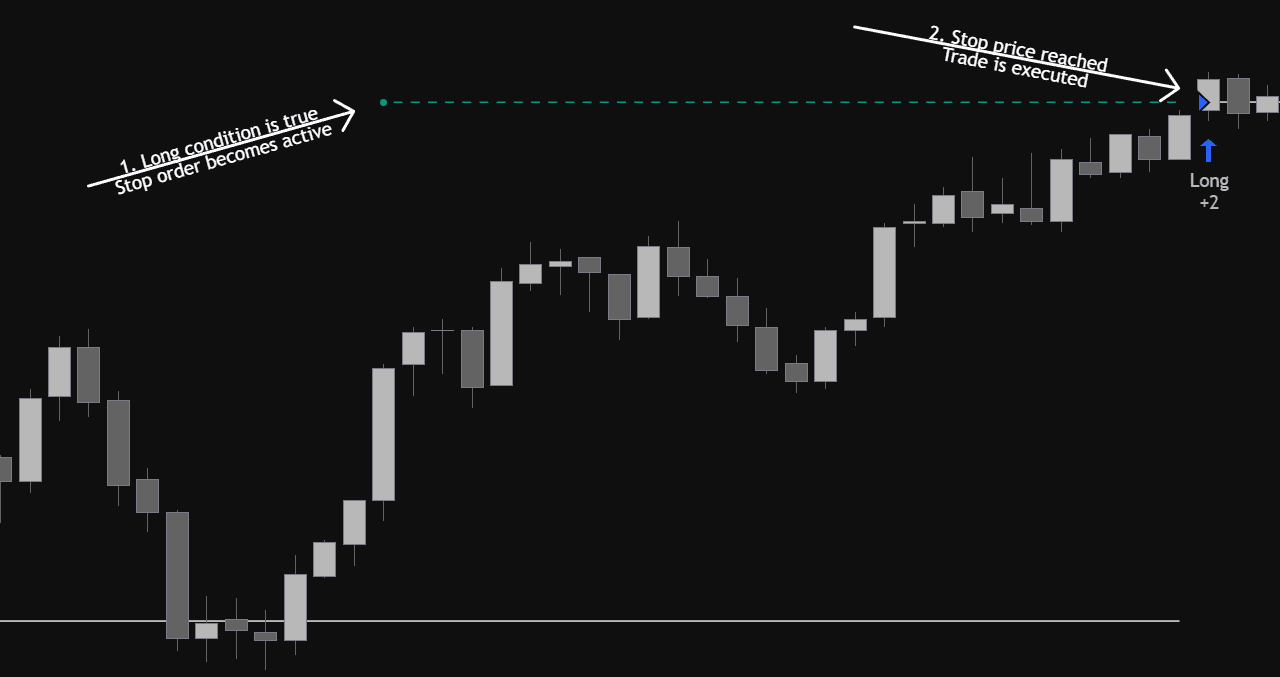
Stop orders execute at a specified price or worse. For long positions, a stop order is generally placed above the current market price; for short positions, it is placed lower.
Stop orders can be enabled by toggling the "Long Stop Value" setting.
Stop orders are represented by a dashed line.
A dot is displayed to indicate when a long condition is true, thus updating the stop order price.
Stop-Limit Orders
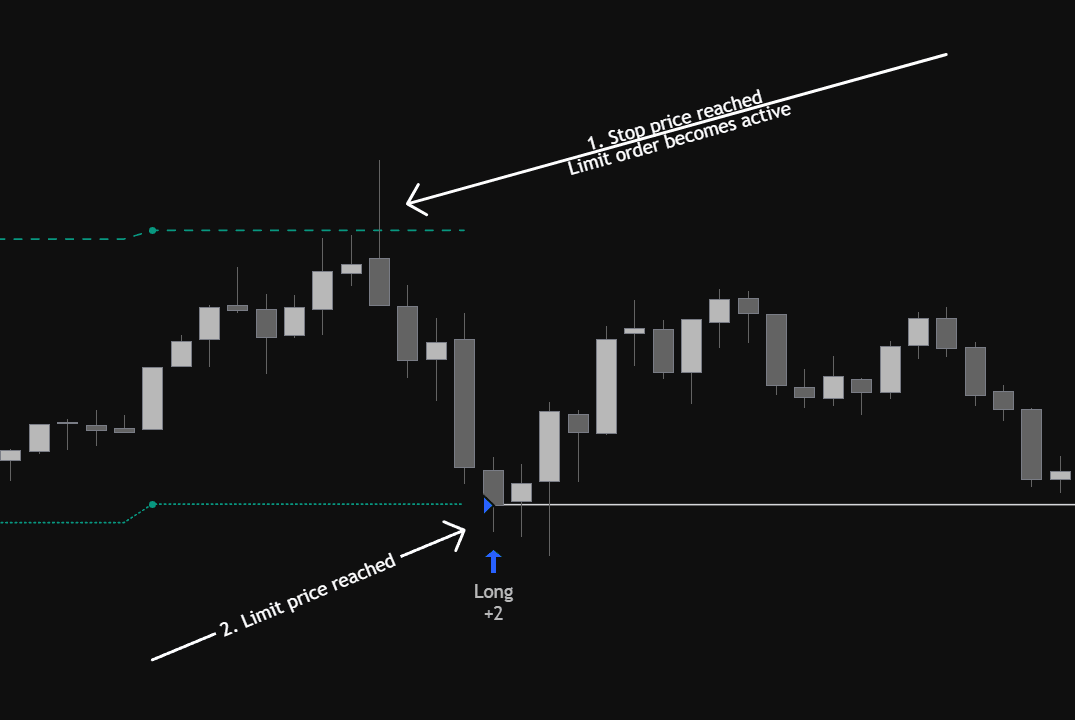
Stop-limit orders use both limit and stop orders together, providing more control over the price at which a trade is executed.
In a stop-limit order, when the specified stop price is reached, the limit order becomes active. Once this limit price is reached, the trade is executed.
Limit / Stop Orders Price
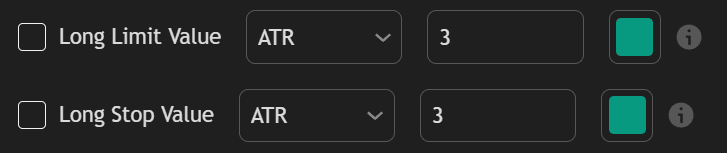
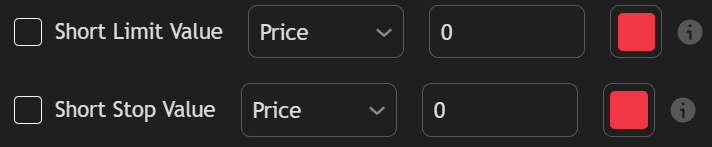
The price of limit and stop orders is specified in "Long Limit Value"/"Short Limit Value" and "Long Stop Value"/"Short Stop Value," respectively. These settings are located at the bottom of the Long/Short Conditions settings groups.
Similar to TP/SL, various options to determine the order price are available:
| Option | Description |
|---|---|
| Price | Set the limit/stop orders at the specified price. |
| Currency | Set the limit/stop orders a specified amount of currency away from where the entry condition is met. |
| Ticks | Set the limit/stop orders a specified amount of ticks away from where the entry condition is met. |
| % | Set the limit/stop orders a specified percentage away from where the entry condition is met. |
| ATR | Set the limit/stop orders N average true ranges away from where the entry condition is met, where N is a specified multiplier. |
| Forecast | Use a percentile of a returned forecast to the order price. Forecasts must be enabled in order for this to work. |
For convenience, all options (except "Price") are adjusted based on the order type; for example, limit orders will be below the current price for longs and above for shorts, while stop orders will be above the price for longs and below for shorts. These can always be inverted using a negative value.
The price of a limit/stop order is updated every time the specified long/short condition is true.
No Existing Positions Requirement
Users can enable the Don't Allow Trades Until Closed setting in order to only open trade when no existing positions are open. This setting allows waiting for a position to be closed before one can be opened.
Enabling Don't Allow Trades Until Closed for long positions will prevent opening shorts as long as a long position is opened.
If this same setting is not enabled for short conditions then shorts can effectively be closed by new long positions.