
Webhooks
Webhooks allow strategy alerts to be sent to third-party applications such as Discord, Telegram, automation platforms, or anywhere for advanced usage such as automated trading.
Creating a webhook
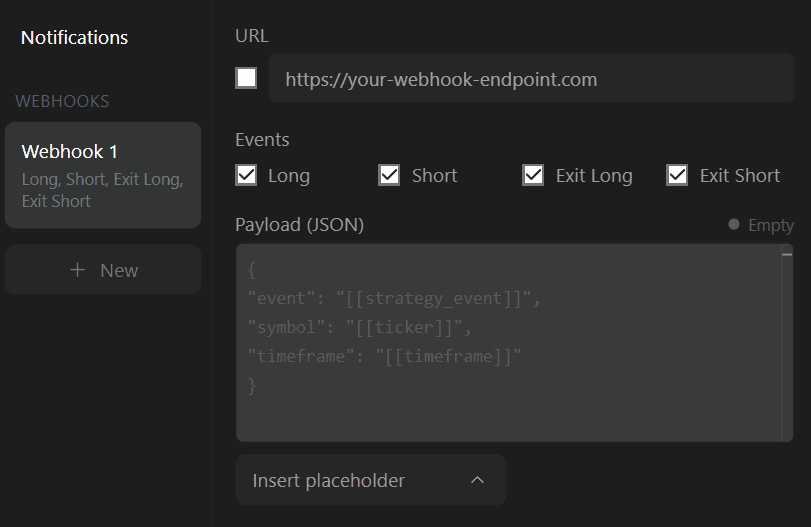
To create a webhook, simply look at the alert menu sidebar and click + New under the WEBHOOKS section. This will open the settings for the new webhook, which will also appear in the alert menu sidebar.
Users can create up to 4 webhooks.
Webhook Settings
Webhook URL (Required)
The URL of the webhook that will be reached when an alert is triggered. Only valid URLs are allowed.
Once a valid URL is entered, the webhook toggle can be enabled.
Events
The event toggles determine for which strategy events (long, short, exit long, exit short) a webhook is triggered.
Payload (Optional)
The payload field should contain the data sent to the webhook. The expected format for the payload is JSON.
Learn more about the JSON format here.
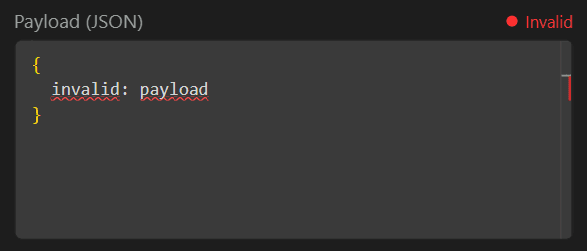
If the payload is invalid it will be indicated.
If no payload is provided an empty JSON {} will be sent.
Placeholders
Users might want to include in their alert message dynamic data, such as which strategy event triggered the alert or the entry price of the strategy.
This is possible by using placeholders. The placeholder syntax is as follows [[placeholder_name]]. The following placeholders are available.
| Placeholder | Description | Type |
|---|---|---|
| [[currency]] | Currency of the asset the strategy is based on | string |
| [[current_contract_myy]] | For strategies set on futures, current contract traded by the strategy in the format [ROOT][MONTH_CODE][2 digit YEAR], for example ESZ25 | string |
| [[current_contract_myyyy]] | For strategies set on futures, current contract traded by the strategy in the format [ROOT][MONTH_CODE][4 digit YEAR], for example ESZ2025 | string |
| [[exchange]] | Exchange where the asset is traded | string |
| [[strategy_event]] | Event originating by the strategy, options include "long", "short", "exit long", "exit short" | string |
| [[strategy_id]] | A unique identifier associated to the strategy | string |
| [[strategy_market_position]] | Current position of the strategy, options include "long", "short", "flat" | string |
| [[strategy_name]] | Name of the strategy | string |
| [[strategy_order_action]] | Action taken by the strategy, options include "buy" and "sell". For this placeholder an exit long would lead to the value being "sell" while an exit short would lead to "buy" | string |
| [[strategy_order_price]] | Price at which the order was executed | number |
| [[ticker]] | Ticker symbol the strategy is based on | string |
| [[time]] | ISO 8601 datetime (including milliseconds) of the opening time of the candle for which the strategy event occurred. Example 2025-11-17T23:14:52.123Z | datetime |
| [[timeframe]] | Timeframe the strategy is based on | number |
| [[timenow]] | ISO 8601 datetime (including milliseconds) of the alert being triggered. Example 2025-11-17T23:14:52.123Z | datetime |
Even though the result of a placeholder can have a specific type, we only consider placeholders valid if they are strings (in between double quotation marks) in the payload.
Example of valid payload:
{
  "id": "my_unique_id",
  "time": "[[timenow]]",
  "event": "[[strategy_event]]",
  "year": 2025,
  "strategy conditions":
  {
    "long": "Confirmation Any Bullish",
    "short": "Confirmation Any Bearish"
  }
}
Placeholders may be inserted in the message directly through the "Placeholders" dropdown and clicking in the specific placeholder to insert. These will be inserted as a string directly.
Creating Multiple Webhooks
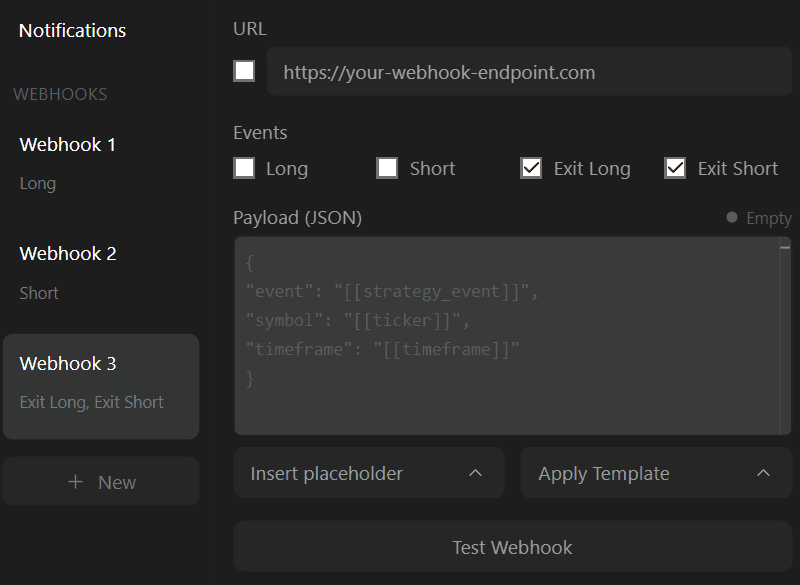
Users can create up to 4 webhooks, one for different events, different URLs, or payloads.
This is useful if the URL or expected payload for specific events are different, or if a specific alert should be delivered to multiple platforms at the same time.
Duplicating Webhooks
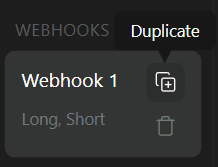
To easily preserve fields such as webhook URL and payload, users can duplicate the webhook by hovering on its corresponding item in the alert menu sidebar, clicking on the duplicate button will duplicate the webhook.
Duplicated webhooks come with the webhook URL toggle disabled.
Templates
Alerts and notifications provided by LuxAlgo are intended for informational and display purposes only. They are not designed or guaranteed for trading execution, investment decisions, or financial advice.
LuxAlgo does not guarantee the availability, accuracy, reliability, or timely delivery of any alerts, notifications, or webhooks. Downtime or delivery failures may occur at any time without prior notice.
By using LuxAlgo alerts, you acknowledge that LuxAlgo is not liable for any losses, damages, or outcomes resulting from the use, interpretation, or reliance upon such alerts, notifications, or webhooks.
Read our full disclaimer.
TradersPost
Create a new strategy on TradersPost, once created navigate to it, click on "Webhook" and copy the provided URL.
In the LuxAlgo strategy alert creation menu create a new webhook, add the provided webhook URL, and use the following as payload:
{
    "ticker": "[[ticker]]",
    "action": "[[strategy_order_action]]",
    "sentiment": "[[strategy_market_position]]",
    "quantity": "1",
    "price": "[[strategy_order_price]]",
    "time": "[[timenow]]",
    "interval": "[[timeframe]]"
}
For quantity use your preffered position sizing based on your money management rules.
See the following docs for more information about TradersPost.
For Futures
When setting a strategy alert for futures you plan on automating TradersPost recommends for the current contract traded to be provided.
The futures contract should be in the format [ROOT][MONTH CODE][4 digit YEAR]. This can be provided using this template:
{
    "ticker": "[[current_contract_myyyy]]",
    "action": "[[strategy_order_action]]",
    "sentiment": "[[strategy_market_position]]",
    "quantity": "1",
    "price": "[[strategy_order_price]]",
    "time": "[[timenow]]",
    "interval": "[[timeframe]]"
}
3commas
Single Webhook
Create a new signal bot on 3commas, select TradingView strategy, and copy the provided URL.
In the LuxAlgo strategy alert creation menu create a new webhook, add the provided webhook URL, and use the following as payload:
{
  "secret": "your_secret_token",
  "max_lag": "300",
  "timestamp": "[[timenow]]",
  "trigger_price": "[[strategy_order_price]]",
  "tv_exchange": "[[exchange]]",
  "tv_instrument": "[[ticker]]",
  "action": "[[strategy_order_action]]",
  "bot_uuid": "your_bot_uuid",
  "strategy_info": {
    "market_position": "[[strategy_market_position]]",
    "market_position_size": "1"
  },
  "order": {
    "amount": "1",
    "currency_type": "base"
  }
}
Use your provided "secret" and "bot_uuid".
For amount in order use your preffered position sizing based on your money management rules.
See the following docs to learn more about 3commas strategy bots.
Multiple Webhooks
You can also use multiple webhooks with 3commas to open specific positions.
Create a new signal bot on 3commas, select custom signal, select "Reversal" as direction, copy the provided URL and use the following payloads depending on the position:
Only keep "long" enabled in the event tab.
{
    "secret": "your_secret_token",
    "max_lag": "300",
    "timestamp": "[[timenow]]",
    "trigger_price": "[[strategy_order_price]]",
    "tv_exchange": "[[exchange]]",
    "tv_instrument": "[[ticker]]",
    "action": "enter_long",
    "bot_uuid": "your_bot_uuid"
}
Only keep "exit long" enabled in the event tab.
{
    "secret": "your_secret_token",
    "max_lag": "300",
    "timestamp": "[[timenow]]",
    "trigger_price": "[[strategy_order_price]]",
    "tv_exchange": "[[exchange]]",
    "tv_instrument": "[[ticker]]",
    "action": "exit_long",
    "bot_uuid": "your_bot_uuid"
}
Only keep "short" enabled in the event tab.
{
    "secret": "your_secret_token",
    "max_lag": "300",
    "timestamp": "[[timenow]]",
    "trigger_price": "[[strategy_order_price]]",
    "tv_exchange": "[[exchange]]",
    "tv_instrument": "[[ticker]]",
    "action": "enter_short",
    "bot_uuid": "your_bot_uuid"
}
Only keep "exit short" enabled in the event tab.
{
    "secret": "your_secret_token",
    "max_lag": "300",
    "timestamp": "[[timenow]]",
    "trigger_price": "[[strategy_order_price]]",
    "tv_exchange": "[[exchange]]",
    "tv_instrument": "[[ticker]]",
    "action": "exit_short",
    "bot_uuid": "your_bot_uuid"
}
Use your provided "secret" and "bot_uuid".
See the following docs to learn more about 3commas signal bots.
Cornix
Go to your dashboard, and create a new bot by selecting "TradingView Bot".
Account Type
Select wether this bot should be for live or a demo trading account.
Settings
Configure the bot name, account, symbol, position size and the direction.
Create Bot
Click on create bot and choose in the new window if the bot should be activated or not after creation. If not activated you will need to activate it later on.
Webhook URL
Once created copy the Webhook URL for this bot and paste it in the webhook URL field in the LuxAlgo alert creation menu.
Events
Before creating the alert only keep the relevant event enabled based on the direction selected before, if you selected "Long" only keep the long event selected.
Repeat the above steps for the Short direction.
Discord
You can receive messages from AI strategy alerts directly in your Discord server, this can be useful to have a personal log for alerts or just a simple place to get notified on actions taken by strategies.
Make sure you have a server and a channel with a webhoook setup, to learn more about creating webhooks for Discord see this guide.
Copy the webhook URL, paste it in the webhook URL field in the LuxAlgo alert creation menu, and use the following payload:
{
  "username": "[[strategy_name]]",
  "content": "New [[strategy_event]] signal on [[ticker]] ([[timeframe]]m)"
}
You maye customize the message look using the fields described here.